After you finish installing the R.O. Writer Server, you can access the Server Utilities from the Start menu. Click Start > Scroll to R > R.O. Writer > Server Utilities.
Logging Into Server Utilities
When you access the Server Utilities, you are asked to log into a database. You do not have to log into a database to open the Server Utilities. If you do log into a database, all backup settings apply to the selected database.
To Log Into Server Utilities Using the Defaults
Complete these steps:
-
Access Server Utilities. The login window opens.
The default values appear in the following fields:
- Server name
- Username
- Password
- Database
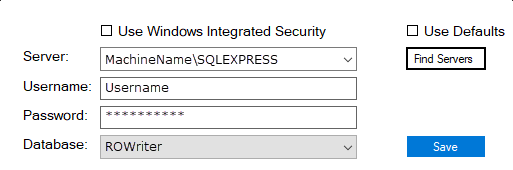
- You can select another database and make it the default database by clicking Save.
- Leave the default database and credentials selected and click Next.
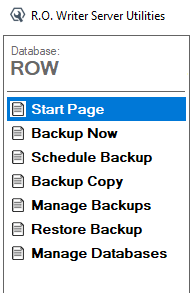
- The Server Utilities opens to the Start Page.
- The name of the selected database appears above the left column.
To Select Another Database
The server and database that are automatically selected when the login window appears are the default server and database. You can change the default database on the login window.
Complete these steps:
- Access Server Utilities. The login window opens.
- The following fields are completed automatically:
- Server name
- You can select another server in the Server dropdown list if any are available. Click Find Servers to search for other servers.
- Username
- Password
- Database
- Server name
- Click the down arrow on the Database dropdown list.
- If you used the existing credentials, the dropdown list expands to show all the databases on the server.
- If you entered new credentials, Server Utilities starts searching for databases on the server and populates the dropdown list.
- Select the database in the Database dropdown list.
- Enter the correct Username and Password for the selected server and database.
- Click the Save button to make the new database the default database.
- The next time you open Server Utilities, this database (and its credentials) are selected by default.
- Click Next.
- The Server Utilities opens to the Start Page.
- The name of the selected database appears above the left column.