The Catalog tab allows you to search parts by Year, Make, Model, Engine, and category.
Required Vehicle Information
The VIN from the current tickets passes to Nexpart.
- If there is a valid VIN on the ticket, clicking the Continue button automatically enters the vehicle information for you.
- If there isn't a valid VIN on the ticket, you must select the year, make, model, and engine in Nexpart's vehicle selector. You can also select a vehicle in the Previous Vehicles dropdown list.

Search for Parts
When the vehicle is selected, the Group/Subgroup columns appear. Select the Parts Group or Smart Search option.
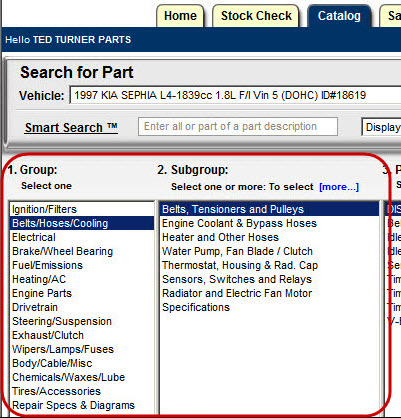
To Search for Parts
Complete these steps:
- Select the Parts Group. Select the subgroup(s) you want.
- Click one or hold down the CTRL key and click multiple subgroups.
- Click the Part Type(s) you want.
- Click one or hold down the CTRL key and click multiple part types.
- Click the Display Parts & Labor or Display Labor Only buttons to display a list of labor and/or parts.
- Click the Search Repair Specs & Diagrams button to search for that information instead.
Smart Search
You can also use Smart Search to search for parts.
To Use Smart Search
Complete these steps:
- In the Smart Search field, enter all or part of a part name or keyword.
- Select Display Parts or Display Labor.
- Press the ENTER key or click the Find button. A list of labor and part types appears.
-
Select the desired labor or part type to see the catalog results.
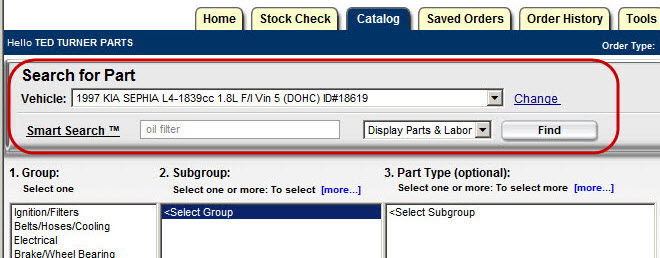
Smart Search Results
Parts displayed default to the per vehicle quantity. You can change the Order Quantity if needed.
- Use the Jump To dropdown list to automatically display parts for a specific manufacturer first.
- Use the Sort By dropdown list to sort by Manufacturer or Part Type.
- Use the Branch Location dropdown list to change branches.
- Click the Add button next to the part number to add the part to the cart (Order Review).
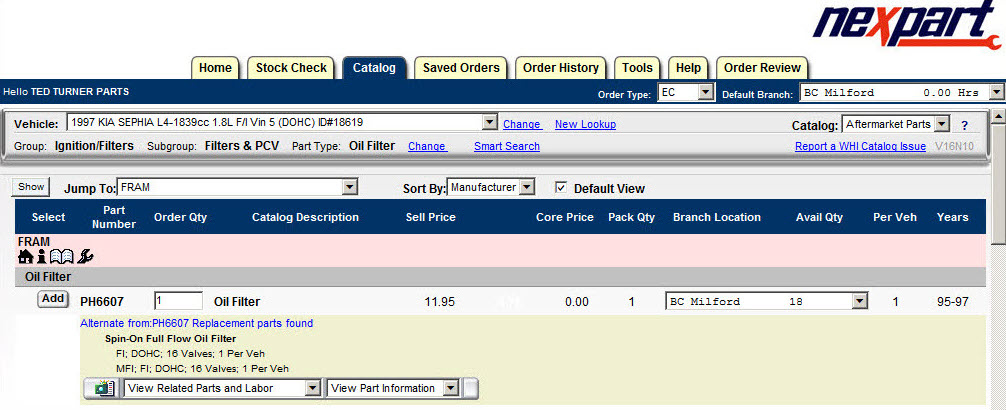
When there is more than one page of results, click the Next Page button or click the subgroup button to jump to another subgroup if more than one was selected.
Adding Labor
To view labor, scroll down to the bottom of the window.
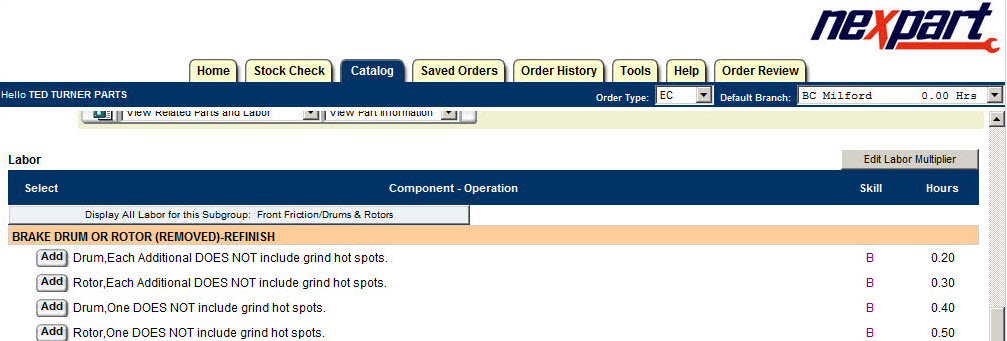
Click the Add button to add the labor to your order.
- Click the Display All Labor for this Subgroup button to display all labor operations.
- Select Edit Labor Multiplier to change the default multiplier of 1 to increase labor times.
