Posting Credits and Write Offs
The easiest way to post a credit or write off accounts that you won’t get paid on in Accounts Receivable is to set up a payment type called Credit, Write Off, Bad Debt or any other name you wish under the Configuration module. Select Configuration > Repair Order > Payment Types.
Then, post the credit or write off to existing open charges as you would a payment by selecting Payment Type Credit Cards and selecting Credit in the Type dropdown list.

NOTE: The amount will show on the Summary report split out for that new payment type. Just remember to subtract that amount from the total money you received that day. In QuickBooks, it will import to that account name and not be included in your regular deposit in the Checking account.

Another way of posting a credit is to go into Edit Accounts in the Accounts Receivable module, select the customer and click on the Add Charge button and add a negative charge with description such as Credit.
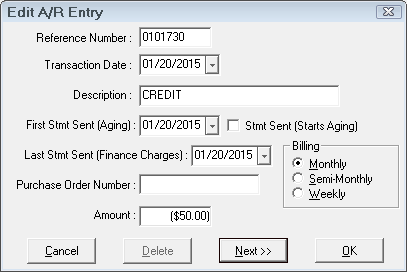
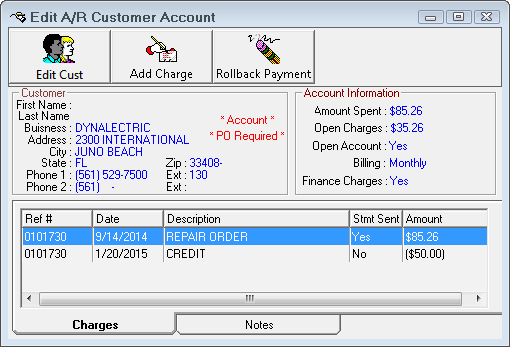
At this point, if the customer has no other charges, you can leave the credit there until they charge again.
When the customer makes a payment, you can take the credit and apply it at the same time you apply the payment by entering in the amount they are paying for payment and double clicking on the credit(s) and then double-clicking the charge(s) to enter the amount of the payment plus the amount of the credit. Don’t forget to ensure that the Payment Balance amount is 0.00.
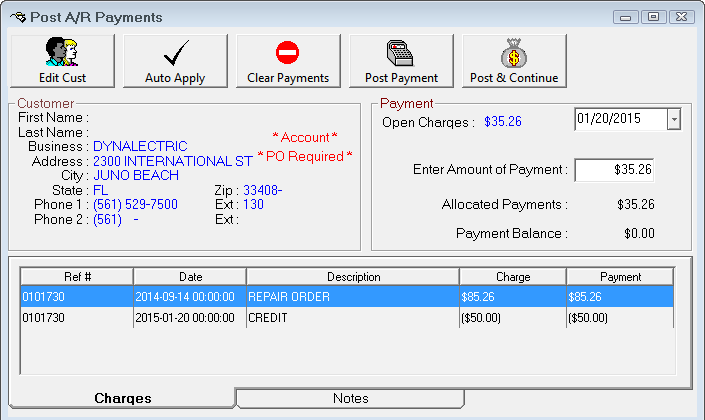
To resolve your offsetting charges (credit = charge which balances to 0.00) or apply the credit towards an open charge now, post a payment in Accounts Receivable, leave the amount of the payment at 0.00 and double-click on each of the charges that offset each other entering the amount to pay equal to the credit amount. When the Allocated Payments is 0.00 and the Payment Balance is 0.00, click the Post Payment button. This will then show credit taken, get rid of the charges and will no longer show on the Aging Report as 0.00.
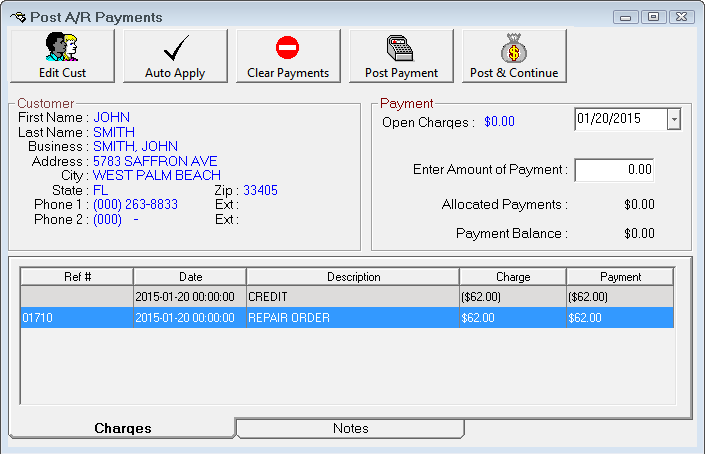
Tip: Always watch the Payment Balance amount. You only want to click on the Post Payment button when that amount is 0.00 unless the customer did in fact overpay you and you want to leave the overpayment amount as a credit on their account.
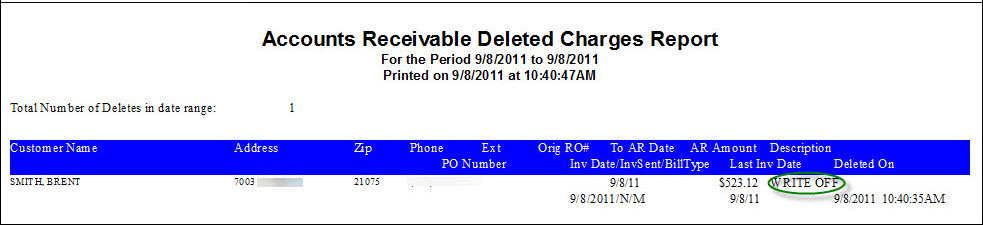
You may decide that you just want to delete the charges but still need a way to track it. Edit the charge under Edit Accounts and change the Description to Write Off or Bad Debt for example and click OK.
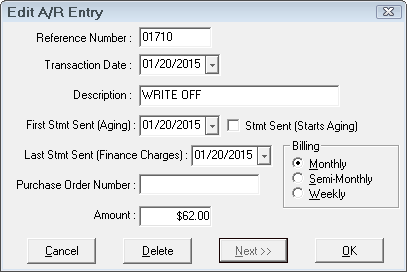
Edit the charge again and select Delete.
You are then able to print a Deleted Charges report for that customer and the description prints as Write Off or Bad Debt.