The Backup Copy Location window enables you to:
- Create a copy of the backup file (.bak).
- Save that copy to another location.
WARNING! R.O. Writer strongly recommends that you configure your daily database backup to save a copy of the backup file to an external location. If all your backup files are stored only on the server computer and something happens to the server computer - e.g., a nonrecoverable crash - you will lose all your data. To prevent this from happening, create a copy of every backup to an external location.
You can choose
- A local drive connected to the server computer such as a USB drive.
- A network drive the server computer is mapped to (requires a network connection).
- An FTP site (requires a network connection).
The backup copy location must
- Be connected to the server computer when the backup is run.
- If the location is a USB drive, that USB drive must be plugged into the server computer.
- If the location is a network drive or an FTP site, the server computer must be
- Connected to that network over an active Internet connection.
- Have write permissions to the folder on that network drive or FTP site.
- Be powered on when the backup is run.
- Have enough storage capacity to hold daily and unscheduled backup files.
If you are using the default SQL Server Express Edition that installs with R.O. Writer Server, the maximum database size is 10 GB. Because the daily backup runs each day of the week, the backup copy location must have enough storage space to store at least seven backup files of 10 GB each (70 GB).
R.O. Writer recommends that the backup copy location have at least a 100 GB capacity to accommodate 70 GB for the daily backups and 30 GB for unscheduled backups.
WARNING! If the backup copy location is not connected, powered off, or out of storage space, the backup copy is sent but cannot be saved in the backup copy location!
Accessing the Backup Copy Location Setting
In the left column, click
Backup Copy is enabled only if the server and database are stored on the computer you are currently using. If you are logging into a server and database from a computer that is not the server, Backup Copy is disabled in the left column.
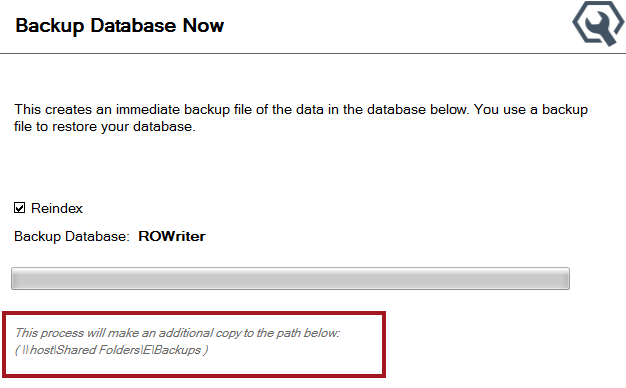
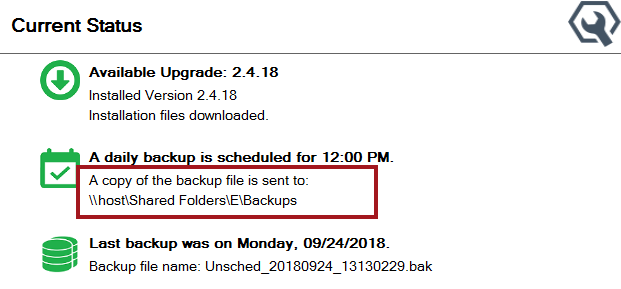
The backup copy location is displayed in several locations in Server Utilities.
Setting the Backup Copy Location
You can create a copy of backup files and save them to a
NOTE: You can restore from the backup copy in the Manage Backups utility.
To Set the Location to a Local or USB Drive
The local drive can be local on the machine or a USB drive inserted into the computer.
Complete these steps:
- On the server computer, access the Server Utilities application.
- On the login window, select the Server and Database you want to back up and click Next.
- The Server Utilities open to the Start Page. The name of the selected database appears above the left column.
- Click
(This entry is active only if you are using Server Utilities on the server computer where the database is stored.) The Backup Copy Location window opens. - In the Location dropdown list, select Local or USB Drive.
- The red warning text disappears.
- The File Path field appears.
-
You can type in the File Path or click Browse to navigate to it. (This field requires a UNC path.)
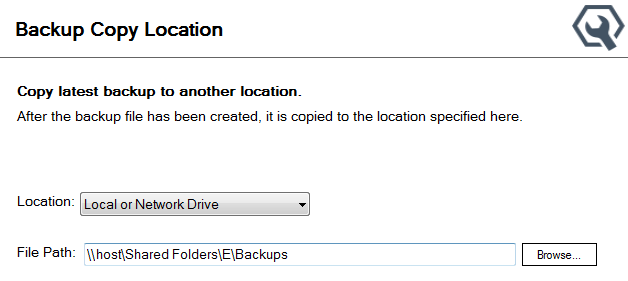
- When the correct File Path appears in the field, click Save.
- The next time any database backup is run, a copy is created and saved to this location.
- Click Backup Copy. The Backup Copy Location window opens.
Backup Copy is active only if you are using Server Utilities on the server computer where the database is stored.
To Set the Location to an FTP Server
You can set the backup copy location to an FTP server. The connection must be tested successfully before it can be saved.
Complete these steps:
- On the server computer, access the Server Utilities application.
- On the login window, select the Server and Database you want to back up and click Next.
- The Server Utilities open to the Start Page. The name of the selected database appears above the left column.
- In the left column, click Database Backup. The Backup Database Now window opens.
- In the Location dropdown list, select FTP Server.
- The FTP fields appear.
- A Test button appears at the bottom of the screen next to the Save button.
The Save button is disabled until the FTP connection is successfully tested.
- Enter the
- Server address (Required)
- User (Enter only if this location requires you to log in.)
- Password (Enter only if this location requires you to log in.)
- Folder on the FTP site where the backup copies should be stored.
- Select Passive (default) or SSL/TLS. You must select one; Server Utilities supports both.
- When the correct information is entered, click the Test button to verify the FTP connection. If the test is successful, the Save button activates.
- Click Save. The Backup Copy location is saved.
- The next time any database backup is run, a copy is created and uploaded to the FTP using the saved credentials.
Where the Backup Copy Location Appears
The Backup Copy Location appears on two windows in the Server Utilities.
Backup Database Now Window
Current Status Window
Running Backups Without a Backup Copy Location
By default, no backup copy location is set. When you click Backup Copy in the left column, the Location is set to None (Do not copy).
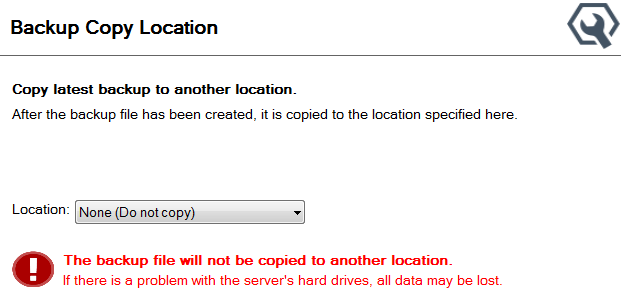
When daily and unscheduled backups are created, no copy is created or saved to another location. This is not recommended because there is no backup copy if something happens to the current server computer.
A red warning appears in the middle of the window urging you to set a backup copy location. The red warning disappears as soon as you select another option in the Location dropdown list.