Sometimes there is a problem and the file update cannot load. If this happens, an error appears. Click OK to continue launching R.O. Writer. Then, exit R.O. Writer and re-launch. Sometimes launching a second time fixes the issue.
If the error occurs every time you launch R.O. Writer, you can try to fix the update.
File Update Error
- If the file updates cannot load, the file update progress bar on the launch window pauses.
- The Update Failed prompt appears. (Steps 1 and 2 often happen so fast that you rarely notice that the progress bar stops.)
- The box in the center lists the files that could not load.
- You can click the check the log file link to see the details.
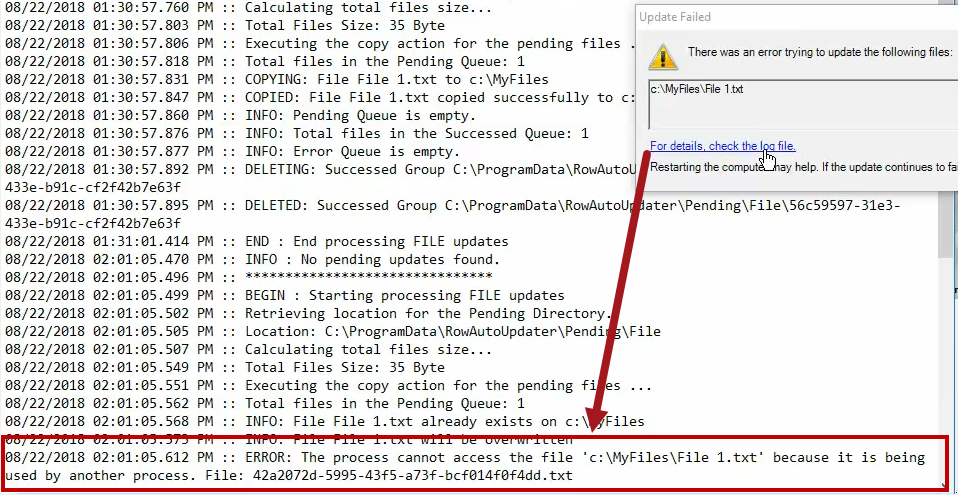
-
Click OK and the R.O. Writer continues to launch normally.
A failed file update does not prevent R.O. Writer from launching or operating.
- The update files remain in the ...Pending\File folder on the workstation's hard drive until the update is run during the next launch of R.O. Writer Client.
The next time you launch any module of R.O. Writer, the update attempts to load on the launch window again. R.O. Writer tries to install the update files on every launch until the update files install successfully.
Fixing the File Update
When an update fails, try the following:
- Close and re-open R.O. Writer. The update files attempt to install again.
- Check the log file. You can access the log file
- On the prompt that appears over the launch window.
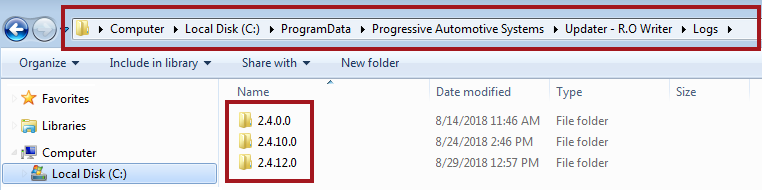
In Window Explorer by navigating to the following folder: C:\ProgramData\Progressive Automotive Systems\Updater - R.O. Writer\Logs.
There is a folder for each R.O. Writer version that has ever been installed.
Within each version folder is a log of each launch of R.O. Writer within that version.
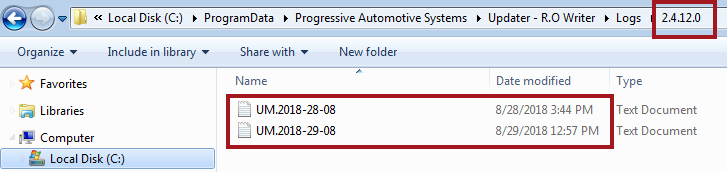
If you open R.O. Writer Client several times on the same date, it adds each launch to the same log file for that date.
- Re-boot the client workstation and then open R.O. Writer. The update files attempt to install again.
-
In the ...Pending\File folder, delete the folders with the encrypted names.
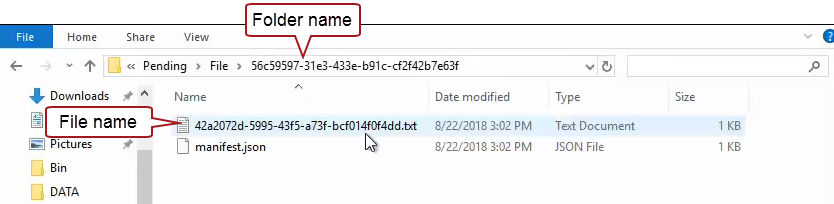
Then, wait about 15 minutes for the Window service to download the file updates again. The Windows service will try to install the file updates in the background. If that fails, you will see the encrypted folders in the ...Pending\File folder.
- If the update continues to fail after multiple attempts, contact R.O. Writer Support.