Email Setup
You configure R.O. Writer to send outgoing emails from the shop's email account on the Email Setup window. To do so, you enter your email account information and the outgoing mail server settings for your email provider.

Email Settings
| Field | Description |
|---|---|
|
Outgoing Mail Server (SMTP) |
Enter the outgoing mail server name for your email provider. This information is what allows you to send emails from R.O. Writer. For more information, see SMTP Settings for Email Providers below. |
|
Port (blank for default) |
Enter the port of the outgoing mail server (SMTP) you use. To use the default port of 25, leave the Port field blank. |
|
Use SSL |
Check if your outgoing mail server (SMTP) requires secure socket layer (SSL). |
|
Use Secure Password Authentication |
Check if your outgoing mail server (SMTP) requires secure password authentication. |
|
Account Name |
|
|
Password |
Enter the password for your email account. Your entry is encrypted as you type. Some email providers like Google require an App password from third-party applications like R.O. Writer. For those providers, you need to obtain an App password from them, and then enter that App password in this field. If you use Gmail, please read the For Gmail Users section below. |
|
Your Name |
Enter the name you want to display in the From field of emails you send to customers. |
|
Your Email Address |
Enter the email address for your shop. NOTE: R.O. Writer Support uses this email address if something has to be emailed to the shop. |
|
Document Templates |
If applicable, select the default templates to use when emailing a customer. This dropdown list contains all Email Templates configured in Marketing Setup. Click the Edit button to edit the selected template and/or save it as a new template. |
|
Test Connection |
Click Test Connection to verify that your settings are correct. R.O. Writer sends a test email using your settings. |
|
Cancel |
Click to exit without saving changes. |
|
Save |
Click to save your changes and exit. |
SMTP Settings for Email Providers
The following table provides links where you can find the outgoing mail server (SMTP) settings for the most common email providers. If you don't see your email provider listed, please contact your email provider and ask for their outgoing mail server (SMTP) settings.
|
Email Providers |
Link to the Provider's SMTP Settings |
|---|---|
|
Gmail |
|
|
Yahoo |
|
|
Outlook, Microsoft 365, and Hotmail |
|
|
AOL |
For Gmail Users
Google accounts require an App password from third-party applications like R.O. Writer. For details, read the following article on the Google support site: https://support.google.com/accounts/answer/185833.
For full instructions about using App passwords in R.O. Writer, open and read the following R.O. Writer document: Support Document: Gmail App Password Setup Guide.
Activate the Ability to Email Customers
Click the Set Customers to Receive Email button to activate the ability to send emails to customers.
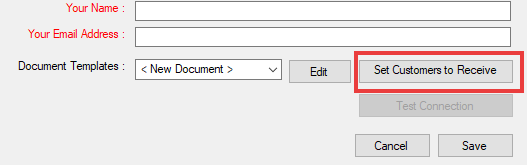
After you click the Set Customers to Receive Email button, the Send box on the Edit Customer window is checked on all valid email addresses for all customers.
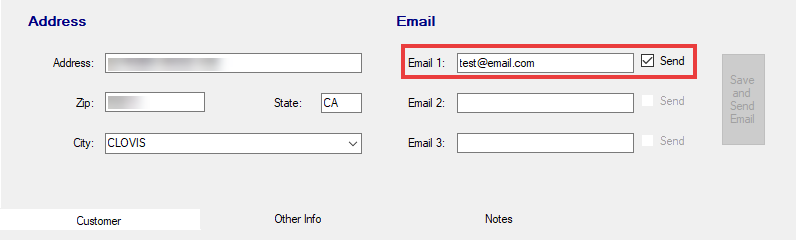
NOTE: Bulk emails are sent to all email addresses with the Send box checked.
Keep in mind the following before you click the Set Customers to Receive Email button:
- The Send box will not be checked for customers without a valid email address.
- The Send box will not be checked for new customers.
- There is no global undo. If you want to exclude individual customers from bulk emails, you need to open the customer record and uncheck the Send box.
NOTE: R.O. Writer validates email addresses entered on the Edit Customer window to prevent junk email addresses from being entered.