If you are using the Employee Time Clock to track employee time, you can use the Edit Time Cards function to edit and correct the time cards of employees.
Edits are applied immediately. Be cautious when editing time cards. Then, check the results by running the Employees Time Sheet report to verify your changes.
NOTE: Editing time cards can be password-protected in Configuration so that only certain people can edit time cards.
To Edit Time Cards
Complete these steps:
- On the main window, click the Quick Functions menu > Time Clock (CTRL + J).
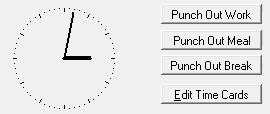
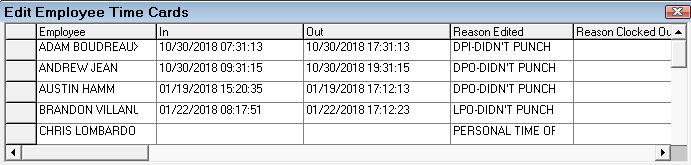
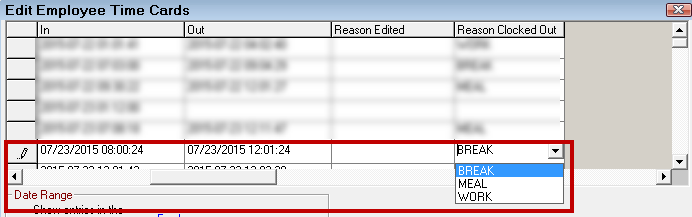
- Select any employee in the list and click the Edit Time Cards button. The Edit Employee Time Cards window opens displaying all active employees.
-
In the Date Range section, select the time range, and the desired employee (or all employees).
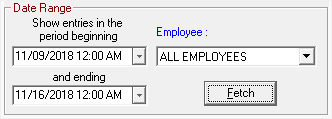
- Click the Fetch button and the list updates.
- Edit the times in the In and Out columns.
- Select the reason the card was edited in the Reason Edited column.
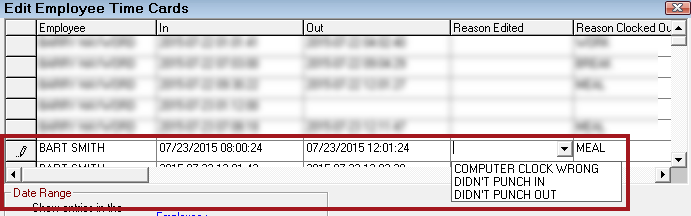
- Select a reason in the Reason Clocked Out column.
This column is editable only if Require a Clock Out Reason When Using Time Clock is checked in General Options in Configuration.
- When the editing is completed, press the Done button to save your changes and close the window.