Configuring the Coverage File Download for Suppliers
You need to choose how the coverage file should be downloaded for each supplier.
NOTE: This feature is available for Smart eCat users.
General Coverage File Download Setting
This setting applies to coverage file downloads for all suppliers. You can customize how each supplier downloads coverages when configuring the supplier interface.
Catalog Options
Click Configuration menu > Repair Order > Catalog Options. Select how you wants to download coverages when R.O. Writer starts:

-
- Prompt you to download coverages
- Never update coverages
Coverage File Download Options for Each Supplier
In Suppliers configuration, select the supplier and click the Set Coverage File Download Options button.
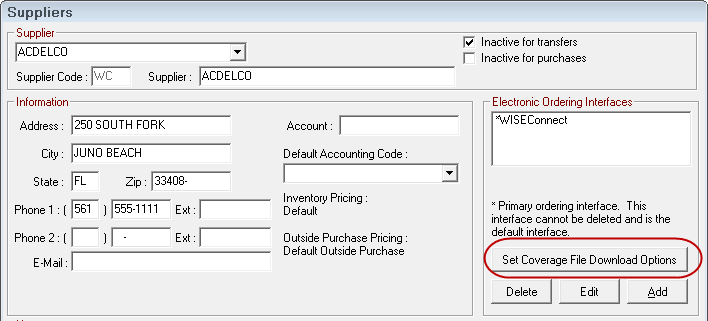
The Coverage File Download Options window opens and allows you to choose manual or automatic downloads for the supplier.
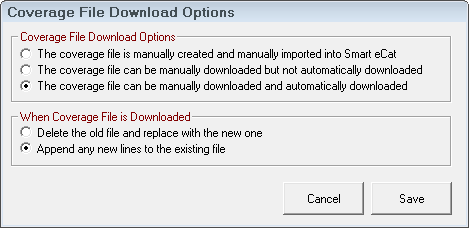
There are two steps:
- In the Coverage File Download Options section, you choose how the coverage file is downloaded.
- In the When Coverage File is Downloaded. section, you determine what happens to the existing file when the coverage file is downloaded.
NOTE: Coverage downloads are not available for Autoi suppliers. As a result, the Set Coverage File Download Options button is disabled. The coverage must be manually created or manually imported.
The Coverage File is Manually Created and Manually Imported into Smart eCat
- The coverage file is not downloaded in Smart eCat > Update Coverages.
- When the Update Coverages toolbar button is clicked, a prompt appears for the supplier notifying you that you cannot download the coverage file.
- The coverage file is not downloaded when coverages are updated by Epicor the first time R.O. Writer is launched after Epicor is updated.
- "No Download" appears for the supplier on the Epicor update window.
NOTE: This is the required setting for the NAPA PROLink supplier you use in Smart eCat.
The Coverage File Can be Manually Downloaded
- The coverage file is downloaded in Smart eCat > Update Coverages.
- The coverage file is not downloaded when coverages are updated by Epicor the first time R.O. Writer is launched after Epicor is updated.
- "No Download" appears for the supplier on the Epicor update window.
The Coverage File Can be Manually Downloaded and Automatically Downloaded
When Coverage File is Downloaded
If you've selected any kind of manual download, you need to decide what R.O. Writer does with the existing coverage file during download or import.
NOTE: These options are disabled for IAP suppliers because the coverage file is always deleted and replaced.
Delete the Old File and Replace it With the New One
The old coverage file is deleted and replaced with the new coverage file.
Append Any New Lines to the Existing File
The new lines in the new coverage file are added to the end of the current coverage file.
Nexpart Coverage File Options
Nexpart suppliers have unique download options that allow you to download the coverage file according to part number and manufacturer code or part number and line code.
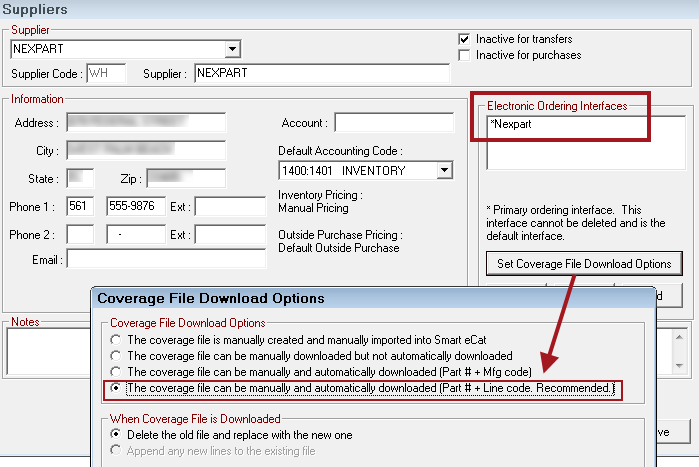
R.O. Writer recommends the part number and line code options because the MCL file is downloaded.
- The part number and manufacturer code option downloads a DCF file that R.O. Writer converts to MCL.
- The Append option is not available for this option. You must choose to delete and replace every time the MCL file downloads.
NOTE: The part number and line code option applies to WHI Nexpart and WHI ACDelco but does NOT apply to ACDelco WIP.
NAPA Coverage File Download Settings
If you plan to use NAPA in Smart eCat, you must select The Coverage File is Manually Created and Manually Imported into Smart eCat as the coverage file download option.
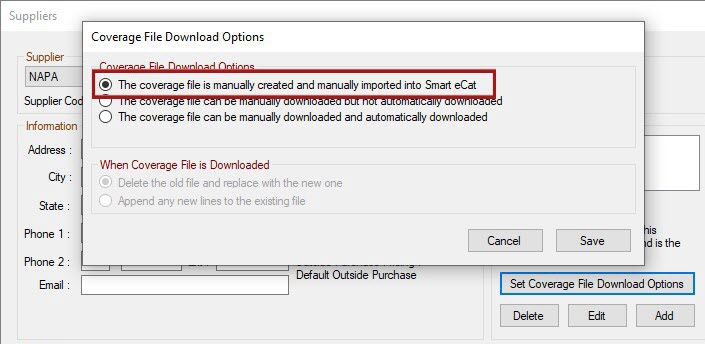
WARNING! This step is critical. If the coverage file download is set to automatic in any way, the correct file downloaded by the Epicor Dynamic Update is overwritten by an automatic download. As a result, the NAPA supplier will not work correctly in Smart eCat.
CARQUEST Coverage File Download Settings
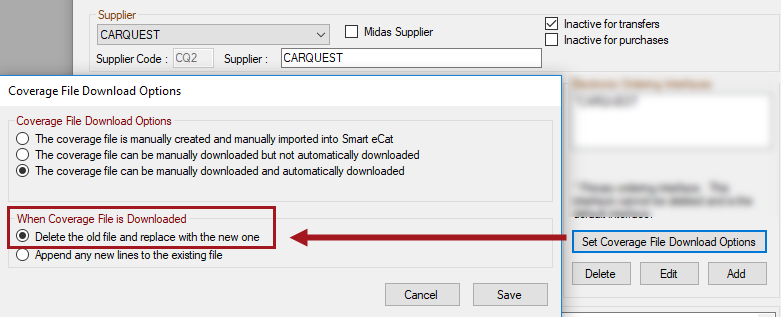
For CARQUEST, you must check Delete the Old File and Replace it With the New One in the When Coverage File is Downloaded section.
Checking the Last Coverage Update
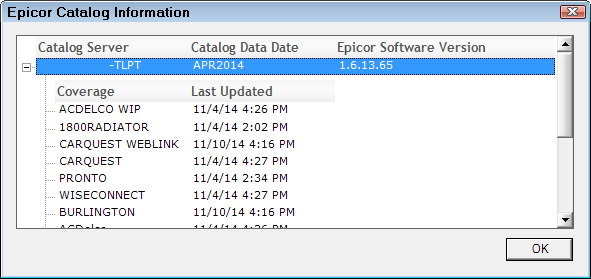
If you want to know the last time coverages were updated, check Catalog Options.
Click Configuration menu > Repair Order > Catalog Options > click the Show Servers & Coverages button. The Epicor Catalog Information window opens displaying the date of the current catalog date.