Adding Smart Jobs to Tickets
Smart Jobs permit direct access to the Epicor catalog for parts and labor lookup. The vehicle information is passed directly to Epicor, along with the pre-determined parts and labor associated with the job. The selected parts and labor are passed back to R.O. Writer and posted directly to the repair order.
Before using this option, Smart Jobs must be set up in Configuration.
You can post only one Smart eJob to one open ticket at a time. If you try to select another Smart eJob before posting the current Smart eJob, you will be prompted to clear the current selection.
Adding a Smart Job to an Open Ticket
Complete these steps:
-
To add a Smart Job, click the Smart Job button in the ticket toolbar
 . The Smart Jobs menu appears.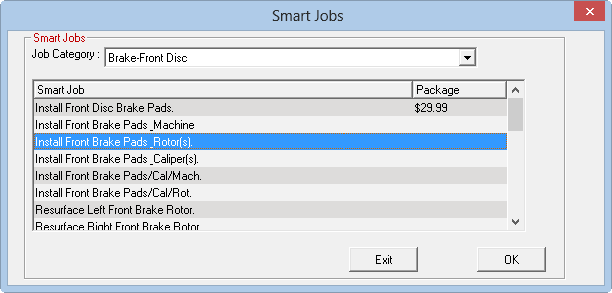
- Select the appropriate job category from the dropdown list.
- Select the desired Smart Job and click OK.
To Answer and Store the Vehicle Configuration Questions
Complete these steps:
-
To select the appropriate labor operations, Epicor may prompt you to answer specific questions about the vehicle.
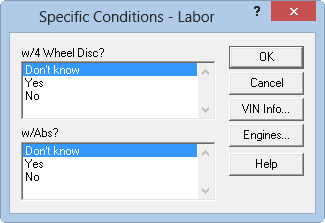
- Select the appropriate answers and click OK.
-
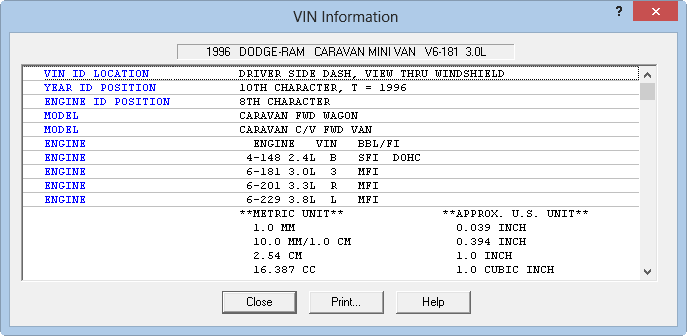
Selecting the VIN Info button displays the VIN Information window.
-
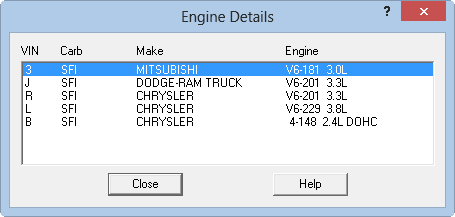
Selecting the Engines button displays the Engine Details window.
-
The Epicor catalog shows the labor operations associated with the specific labor category configured in the Smart Job.
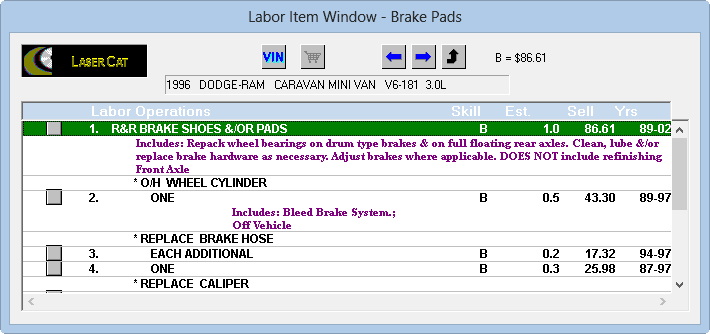
- Select the appropriate labor operations by checking the boxes of the labor operation number.
- When a labor operation has been selected a red checkmark (√) appears in the box.
-
When all appropriate labor operations have been selected, press the blue arrow pointing to the right (
 ) on the LaserCat toolbar to transfer the selected items to repair order in R.O. Writer.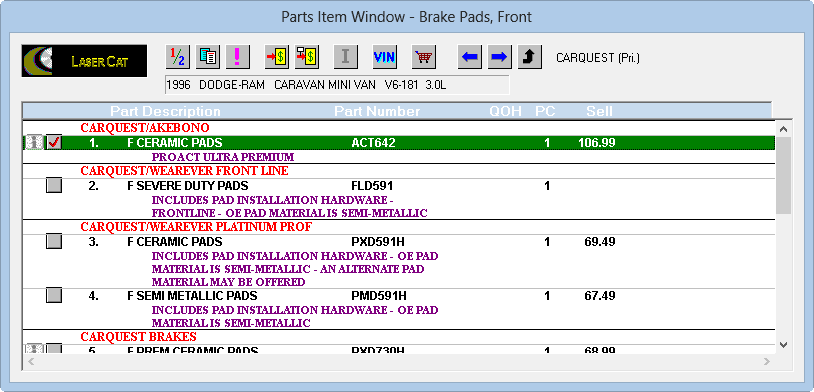
- When all labor operations and parts have been transferred to the repair order, click Exit on the Smart Jobs screen.