Searching for Tickets
Often shops do the same jobs on the same types of vehicles repeatedly. The Estimate Search tool allows you to
- Search history from an open ticket to search for both current and past tickets with similar vehicles and similar labor.
- Transfer the labor and parts from a ticket in history to the open ticket.
This speeds up the process of creating tickets, which helps speed up the process of customer intake.
NOTE: Despite the name, Estimate Search is available from and searches all ticket types.
Accessing Estimate Search from the Ticket Window
Click the Estimate Search button  in the he ticket toolbar. Starting the search from an open ticket ensures that all searches are based on customer, vehicle, parts, and labor for the current ticket.
Searching for Tickets
The Estimate Search window provides search conditions you can use to search for labor and parts.
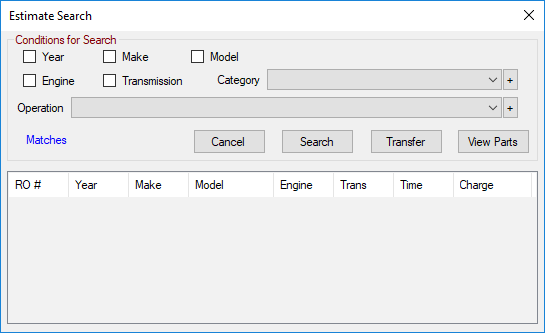
To Select Search Criteria
The Conditions for Search section provides the search criteria you can select to retrieve tickets.
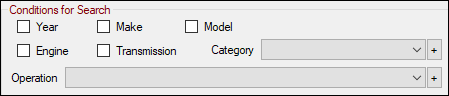
- You must select at least one labor category in the Category dropdown list to retrieve tickets.
- You do not need to select labor in the Operation dropdown list. However, the first entry in the Operation dropdown list is "NO SPECIFIC LABOR OPERATION" and returns results for every item in the selected Category. This enables you to search the whole category quickly.
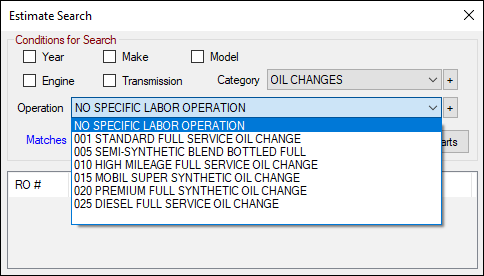
- Select a specific labor in the Operation dropdown list to narrow the search.
- Check the Year, Make, Model, Engine, or Transmission boxes to restrict the search to tickets that match the Year, Make, Model, Engine, or Transmission of the vehicle on the open ticket.
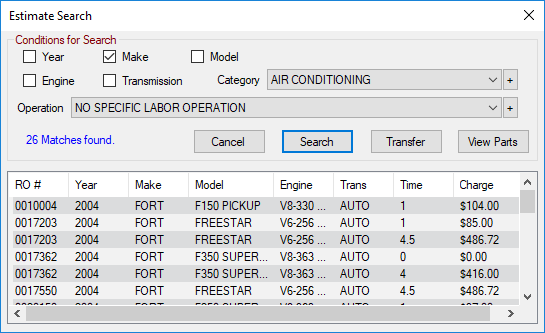
Click the Search button to launch the initial search. The matching tickets appear in the list. The total number of matching tickets appears above the list.
Working with Search Results
Search results are listed by ticket number. You can click each column heading to sort the list by that value.
The search result columns are as follows:
- Ticket number
- Year
- Make
- Model
- Engine
- Transmission
- Time (as recorded by the Labor Time Clock)
- Charge (for the selected labor only not the entire ticket)
If you don't see the labor you want, you can change the search criteria and click Search again.
To See the Parts Included in a Labor
You can see if the labor includes parts by selecting the labor in the list and clicking the View Parts button. A window pops up displaying parts associated with the selected labor.
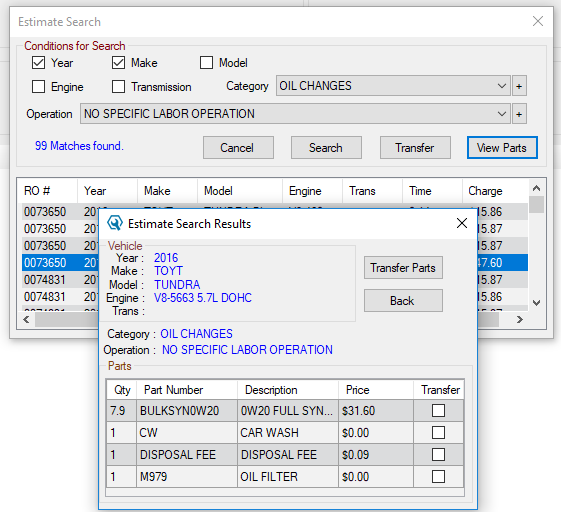
If no parts are included in the labor, no parts are listed.
Transferring Labor to the Open Ticket
You can transfer labor or parts to the open ticket but not both labor and parts at the same time.
To Transfer Labor to the Open Ticket
Complete these steps:
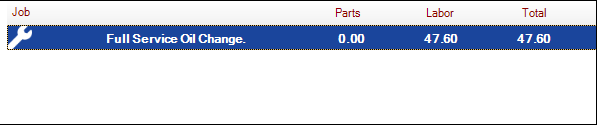
- Select the labor in the list and click the Transfer button OR double-click the labor in the list.
-
The labor appears in the Jobs section of the open ticket without parts.
To Transfer Parts to the Open Ticket
Before transferring labor to the open repair order or estimate, you can open it and see the parts associated with the labor.
Complete these steps:
- Select the labor in the list of search results.
- Click the View Parts button.
- The list of parts included in the job appears.
-
Check the box in the Transfer column of the parts you want to transfer.
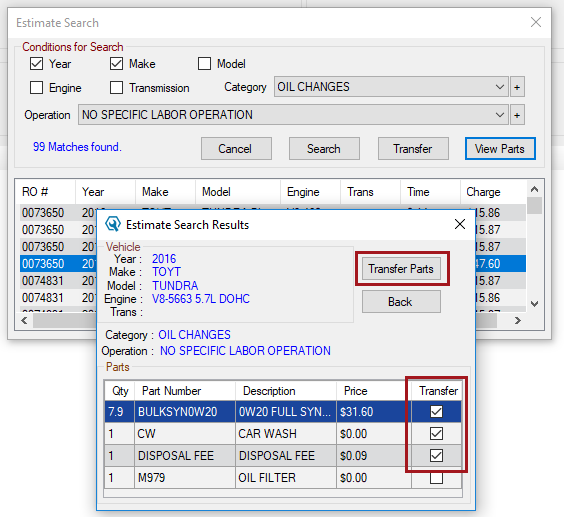
- Click the Transfer Parts button.
-
The parts appear in the Jobs section of the open ticket.
