Entering New Vehicles
If a customer has had service in the shop before, there is usually a vehicle record associated with that customer. Every vehicle record must be associated with a customer record because there can be no standalone vehicles in R.O. Writer.
Any time you cannot find the vehicle, ask the customer if they sold their old vehicle. If they sold the vehicle to someone in your database, you can transfer the vehicle to that customer to keep the service history of the vehicle intact.
Entering New Vehicles During Customer Intake
If you cannot find the vehicle for the customer, you can enter a new one for that customer.
To Enter New Vehicles
Complete these steps:
- When you
- Search for and select a customer, the Vehicle List opens displaying all the vehicles associated with that customer.
Search for a vehicle directly, the Vehicle List opens displaying all the matching vehicle records and the customer associated with each.

- If there are no search results or the vehicle does not appear in the search results, click the New Vehicle button.
- If a customer was selected, the Edit Vehicle window opens to a blank Vehicle tab.
- If no customer is selected, the Edit Customer window opens and you need to enter the customer first.
-
Complete the Vehicle tab. The main vehicle information fields are on the left side. Those fields are determined by your configuration.
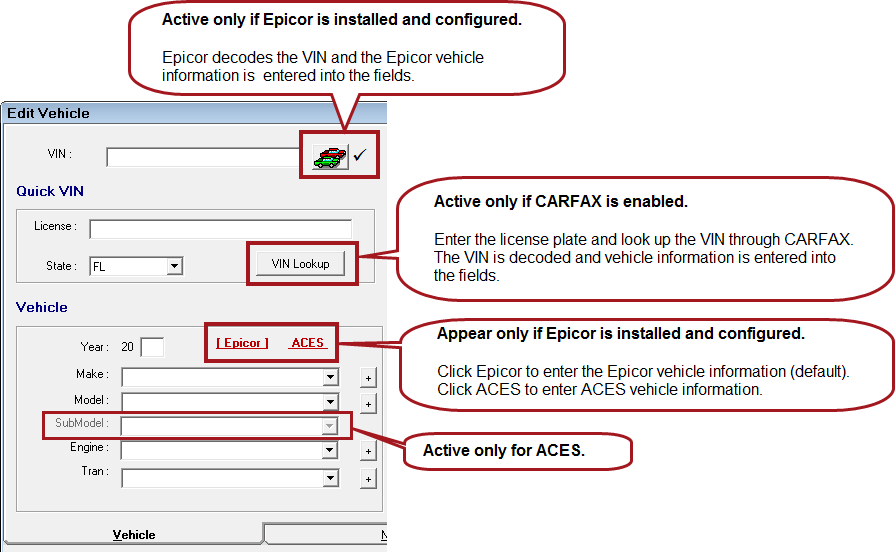
- Enter the Mileage and Additional Vehicle Information as required or desired.
- Complete the Notes Tab if applicable (optional).
- Click OK to save this vehicle to the customer.