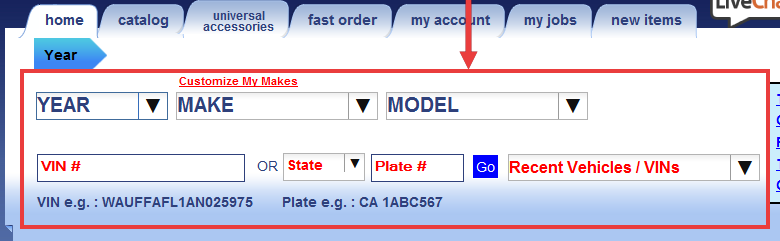
Accessing Web Warehouse
You access
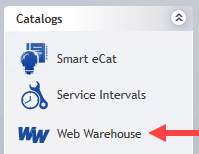
Smart eCat opens to
Launching Web Warehouse from an Open Ticket
If a ticket with a vehicle is open when you click the Web Warehouse logo in the Quick Launch, the punchout window opens in Smart eCat.
- R.O. Writer logs you into your account automatically.
- R.O. Writer passes the vehicle information to the Web Warehouse catalog.
- The bottom of the Smart eCat window displays the vehicle information.
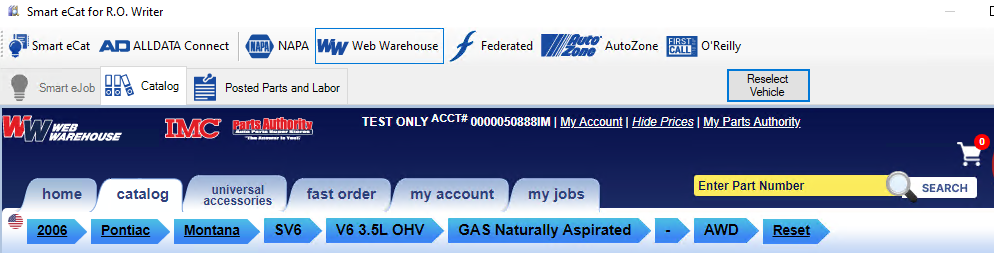
You can search for parts for the vehicle.
If Web Warehouse Could Not Find the Vehicle in the Ticket
If
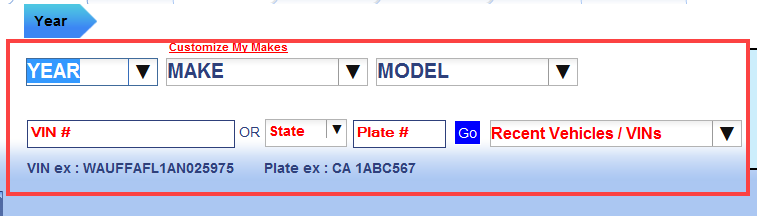
Make sure to select the correct vehicle so you retrieve the correct parts for the vehicle. The vehicle information displays at the bottom of the Smart eCat window.
Launching Web Warehouse When No Ticket is Open
If no ticket is open, you need to search for the vehicle in
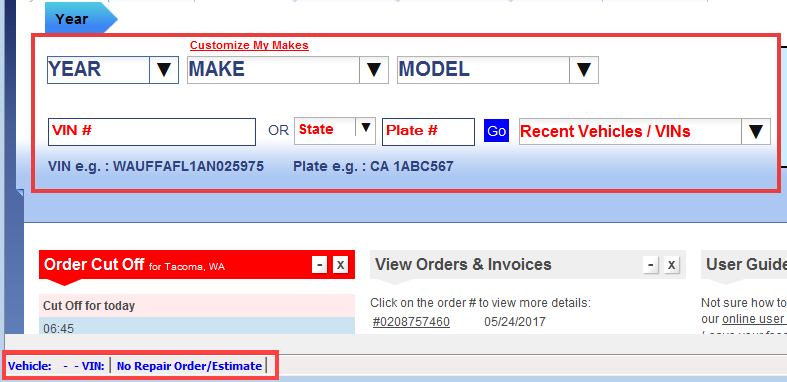
After the vehicle is selected you can search for parts. However, you cannot post found parts to a ticket because no ticket is open.
Selecting Another Vehicle
If you need to change the selected vehicle for some reason, you can click the Reselect Vehicle button above the punchout. The vehicle search fields appear again.