Paying Customer Accounts
Accounts Receivable allows you to open and track customer accounts. You can charge services and then post payments to these accounts.
If you choose to pay the customer account electronically, you process the electronic payments through the Merchant First Mile Middleware software.
Posting Payments to Customer Accounts
Complete these steps:
- Open the Accounts Receivable module.
- Click the Post Payments toolbar button
 .
. - Search for and select a customer from the Customer List. The Post A/R Payments window opens.
-
Enter the Amount of Payment.

-
Click the Post & Continue button
 . The Post A.R. Payment prompt appears displaying the payment balance.
- Click Yes. The Accounts Receivable Payments Details window opens.
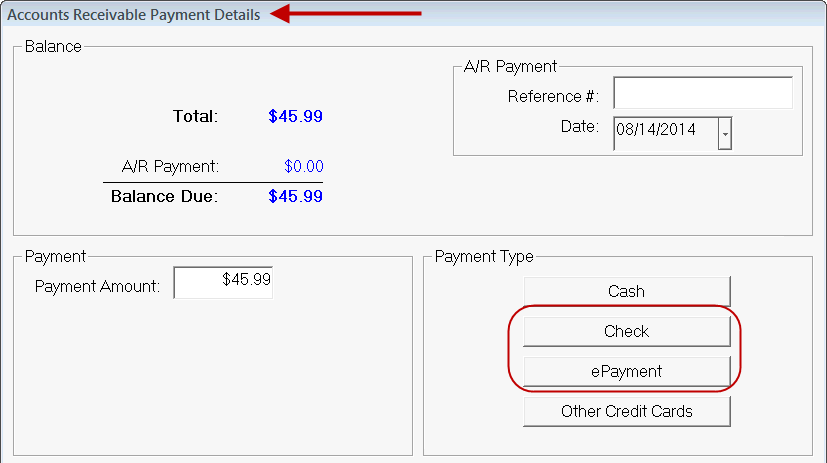
- For an electronic check, click the Check button and then the E Check button. This launches the First Mile process for paying with electronic checks.
- For credit or debit cards, click the ePayment button. This launches the First Mile process for paying with credit or debit cards.
- When the payment has been processed, you are prompted to print a receipt.
- Click Yes and the Advanced Payment receipt prints.
- The electronic payment information appears on the printed receipt.
Rolling Back Payments to Customer Accounts
Complete these steps:
- Open the Accounts Receivable module.
- Click the Edit Accounts toolbar button.
- Search for and select a customer. The Edit A/R Customer Account window opens.
- Select the payment and click the Rollback Payment toolbar button.
- The void ePay window opens displaying the payments posted for the selected customer.
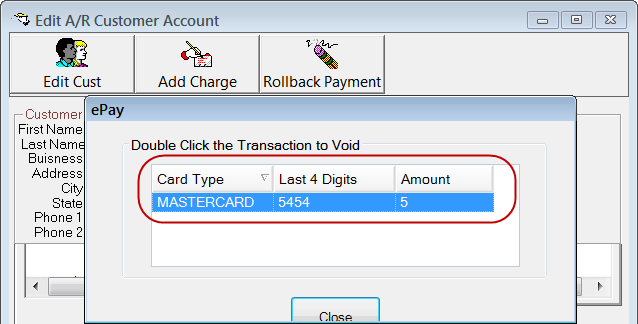
- Double-click the posted payment. A reverse charge is created for the payment amount and appears on the Edit AR Customer Account window.
