You can click the Order Review tab at the top of the page or select the link near the total in the bottom right of the screen.
Any time the Transfer to R.O. Writer button is available and not grayed out, you can select it to post the parts to the current repair order or estimate without ordering the part. If you choose to transfer a part to the ticket without ordering, you will be able to query from other suppliers in Smart eOrder or eOrder.


If the available quantity at the selected location is less than the order quantity, the available quantity will appear in red to alert you that the quantity you wish to order is not available.

You can modify quantities, delete items, or modify the delivery method. Click the Update button to determine your new total.
To Send the Order
Complete these steps:
- Click the Place Order button at the bottom of the screen. The R.O. Writer posting screen appears.
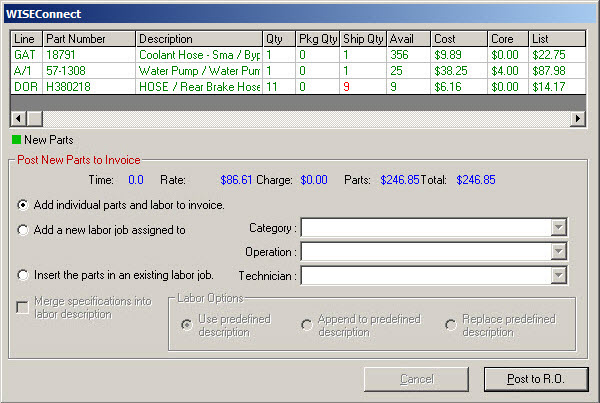
- Select the first option to add individual parts to an invoice without being connected to a labor job.
| Option | Select to… |
|---|---|
|
Add Individual Parts to Invoice |
Add the parts as standalone parts, not connected to any labor job.
|
|
Add a New Labor Job Assigned to |
Add the parts to a labor operation. The dropdown lists on the right activate and you select the job Category, Operation, and Technician. |
|
Insert the Parts in an Existing Labor Job |
Add the parts to an existing labor job.
|
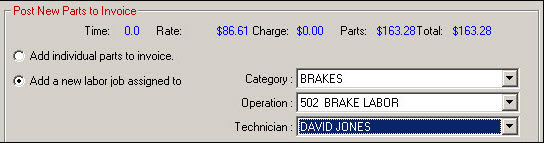
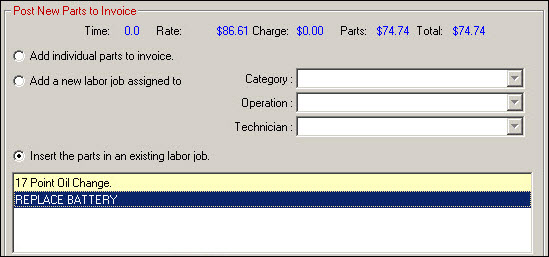
- Click the Post to R.O. button.
NOTE: If the Post to Accounts Payable Option is selected in the WISEConnect electronic integration configuration, you are prompted to post the order to accounts payable.