Help Menu
Every module in R.O. Writer has a Help menu. Every Help menu contains the Help and About options. Some modules contain additional options described in the sections below.
Help and About
All modules contain Help and About entries on the Help menu.
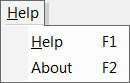
Help
Opens this help system. You can also press the F1 key to open the Help system any time.
About
Opens the information window about R.O. Writer and licensing. You can also press the F2 key in any module to open this information.
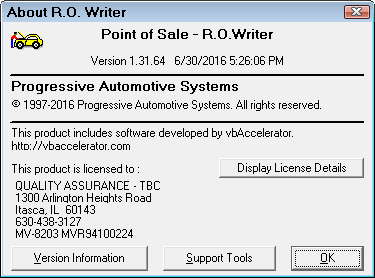
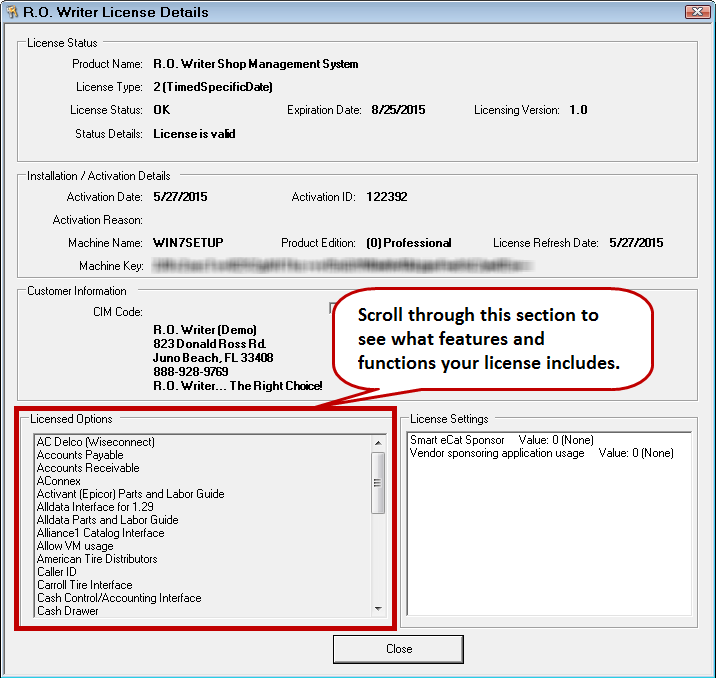
To see what features and functionality your current license includes, check your License Details.
- Click Help menu > About > Support Tools > Display License Details button.
OR
- Click the Start button (in Windows 7) > All Programs > R.O. Writer > Support Tools > Display License Details button.
OR
- Open R.O. Tray and select License Information.
The R.O. Writer License Details window opens.
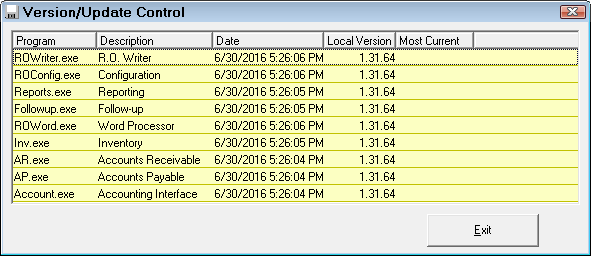
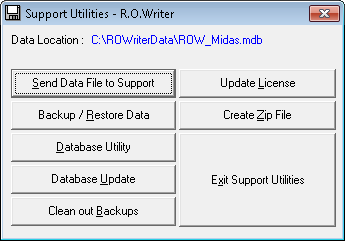
- Click Support Tools to open Support Tools, which help you manage your license options.
Help Menu in the R.O. Writer Module
The Help menu in the R.O. Writer has two additional options:
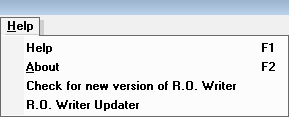
Check for New Version of R.O. Writer
Click to go to the Downloads section of the R.O. Writer web site where you can download the latest version of R.O. Writer.
R.O. Writer Updater
Click to launch R.O. Writer Updater, which downloads and performs relevant updates to R.O. Writer databases.
Help Menu in the Configuration Module
The Help menu in the Configuration module has two additional options:
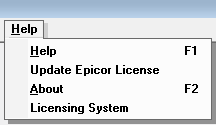
Update Epicor License
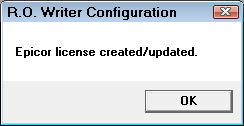
Click to update your Epicor license automatically via the internet.
Licensing System
Each and every computer that uses R.O. Writer must have an authorized license code to activate R.O. Writer. Each computer has its own code and each code is valid for a specific amount of time. If the hardware in a workstation changes, such as a new hard drive, R.O. Writer may cease to function. If you change computers and re-install R.O. Writer, you need to obtain a new license code.
See Licensing for more information.