You can reprint history in the following ways:
- Reprint all repair orders, estimates, or both within a date range.
- Reprint one repair order or estimate.
You can also run a customer history report that includes the entire service history for one vehicle for one customer.
Reprinting Ticket History
When reprinting tickets in History, keep in mind the following:
- When batch-printing, you cannot change the date on the printed form.
- Estimates print with the date they were created.
To Reprint Ticket History
Complete these steps:
-
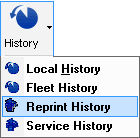
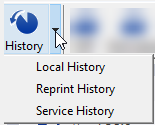
On the main toolbar, click the down arrow q on the History button > Reprint History.
-
The Reprint History window opens. You can print all repair orders and estimates between a certain date range.
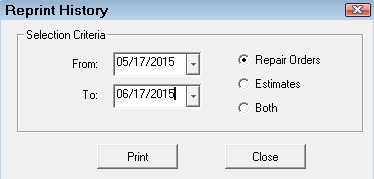
- Click the Print button.
-
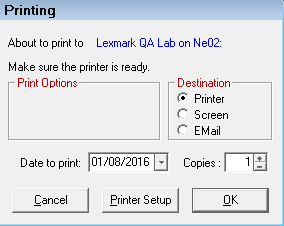
On the Printing window, select Printer or Screen to print to the screen or the printer. The Date to Print field is ignored.
- All repair orders and/or estimates printed within the date range start printing.
- If printed to the screen, a print preview window opens for each ticket.
- If printed to a printer, each item prints to the default or selected printer.
- While the documents are printing, the Reprint History window shows the progress.
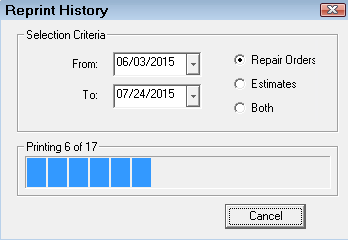
- When all items have finished printing, a prompt appears on the window to let you know the print job is complete.
NOTE: R.O. Writer applies the form type currently selected for repair orders and estimates in Configuration, NOT the form type that was selected when the repair order or estimate was originally printed.
Reprinting One Estimate or Repair Order
When reprinting individual estimates or repair orders, you can change the date on the printed form.
To Reprint One Ticket
To open the customer’s history, you can:
-
On the main window, click the down arrow q to the right of the History toolbar button > Local History.
Then, search for and select the customer and vehicle.
- On the ticket window, click the History toolbar button
 . The customer's history for the vehicle in the ticket opens.
Complete these steps:
- Open the ticket you want to reprint from the customer’s history.
- Click the Print button
 in the History Summary toolbar.
 - The Printing window opens.
- The date in the Date to Print field shows the default date:
- For estimates, the default date is the date the estimate was created.
- For repair orders, the default date is the date the repair order was closed.
- You can type in a new date and that date appears in the Date field on the printed form.
- The selected estimate or repair order prints.
Running a Customer History Report
The Customer History Report compiles all the closed repair orders (called "invoices") or estimates into one report. Each Customer History Report contains the invoices or estimates for one vehicle.
- You cannot run one report that includes both invoices and estimates. You must run a report for invoices and another report for estimates.
- If the customer has more than one vehicle, you need to run a separate report for each vehicle.
Step 1 - Open the Customer's History
To open the customer’s history, you can:
-
On the main window, click the down arrow q to the right of the History toolbar button > Local History.
Then, search for and select the customer and vehicle.
- On the ticket window, click the History toolbar button . The customer's history for the vehicle in the ticket opens.
Step 2 - Print the Customer History Report for the Customer
Complete these steps:
-
When the customer's history for the vehicle is open, click the Print History button.
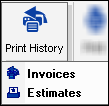
- Select Invoices (closed repair orders) or Estimates (all estimates).
-
A prompt appears asking if you want to print invoices or estimates for all vehicles that belong to this customer.
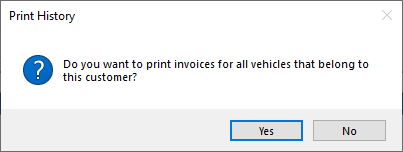
- Click Yes to include the history for all vehicles for the customer. (Click No to print the history for the selected vehicle.)
-
Select the Date Range to print.
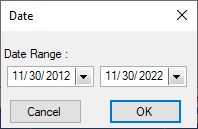
- Click OK. The Printing window appears.
- Click OK to print. The Customer History Report prints.
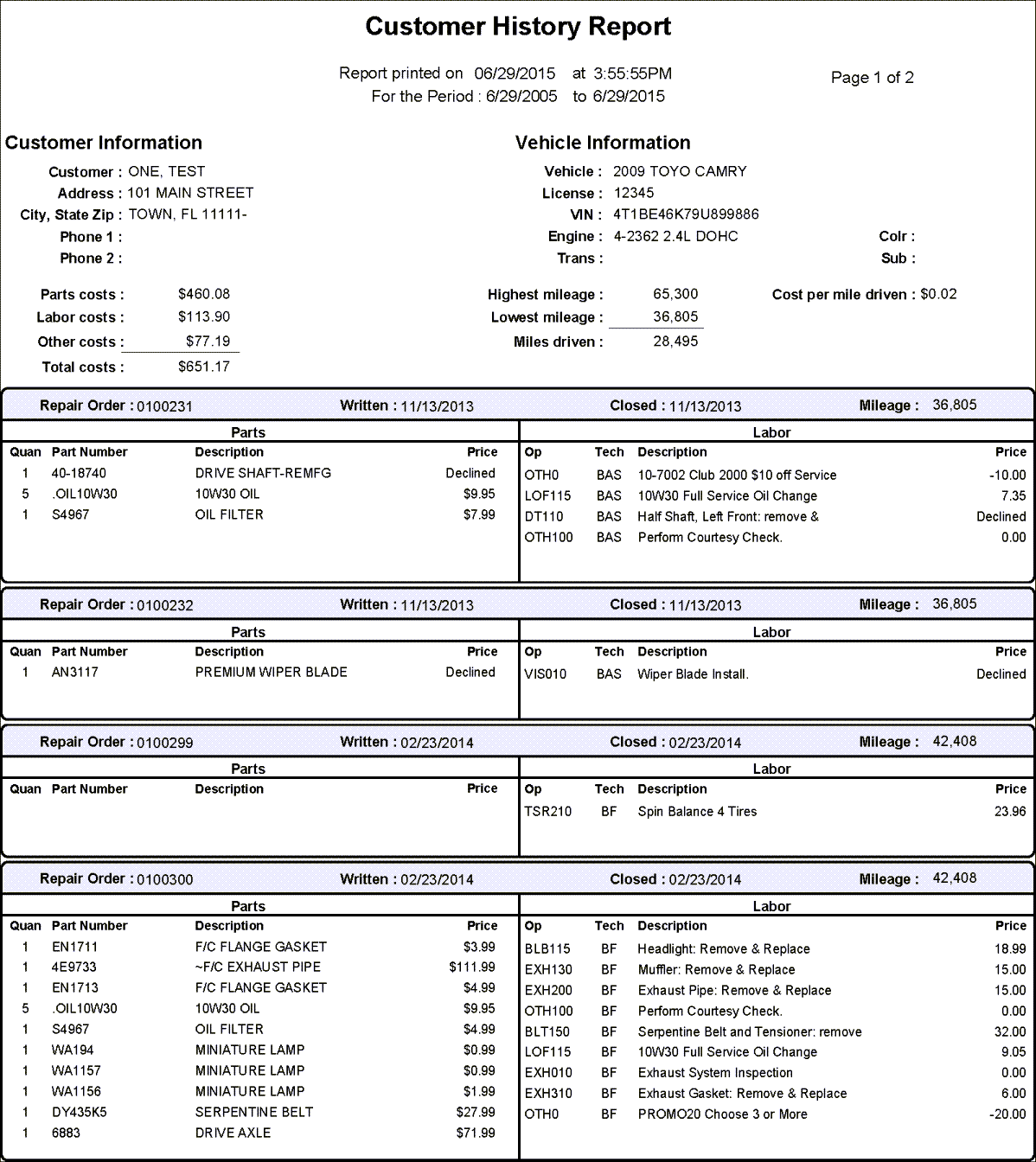
Customer History Report
The top of the Customer History Report shows a summary of the customer's history.
- The Report Printed On date is today's date.
- The date range is the one selected for the report.
- The entire customer history prints only if the date range you selected matches the entire customer history.
- The customer and vehicle information appears as entered.
- The parts, labor, and other costs listed are totals for the entire report.
- The mileage calculations are for the date range selected for the report.
Ticket Sections
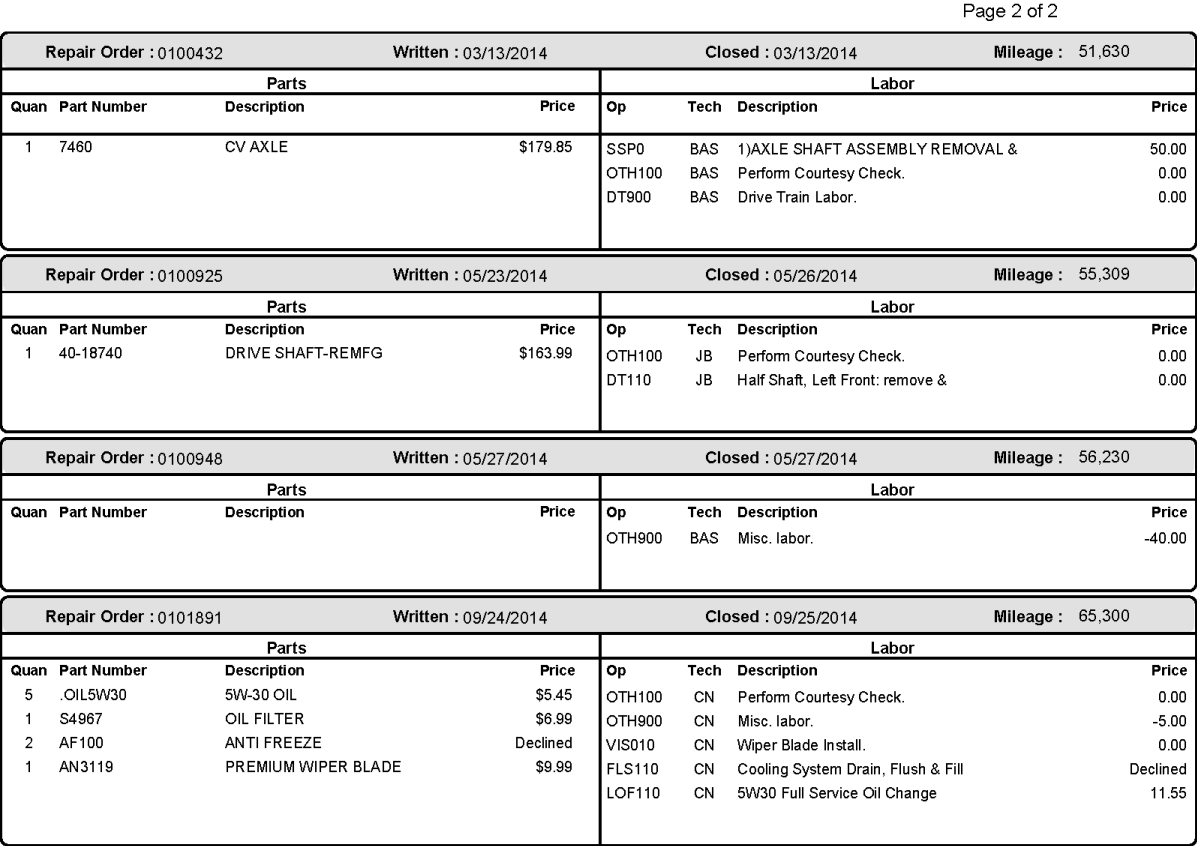
There is a section for tickets that includes:
- The date:
- For quotes and estimates, the default date is the date it was created.
- For repair orders, the default date is the date the repair order was finalized.
- The repair order or estimate number.
- The mileage of the vehicle.
- The required parts, including number, description, and quantity.
- The labor operations that were performed, including the operation number.
- The technician code of the technician who completed the work.
Customer History Report Sample