Printing Tickets
You can print quotes, estimates, and repair orders to
- Printer - Prints to the physical printer you have configured to print tickets.
- Screen - Opens the R.O. Writer print preview window.
- Email - Creates a PDF you can attach to an email.
- PDF - Creates a PDF of the ticket and saves a copy to the Reference tab and two folders on your hard drive.
Printing Ticket Process
Each ticket type has a print toolbar button in the ticket toolbar.
- To print quotes, click the Print Est button in the ticket toolbar
 . This includes tire comparison quotes.
 - To print estimates, click the Print Est button in the ticket toolbar .
- To print repair orders, click the Print RO button in the ticket toolbar
 .
.
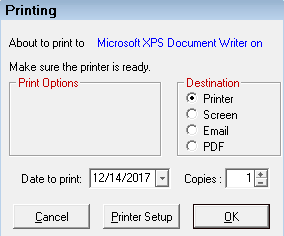
When you click one of these toolbar buttons, the Printing window opens displaying the available options.
-
The Form Types Configuration setting determines how quotes, estimates, and repair orders look when printed to all available outputs.
-
If a part is in local inventory and has a bin location entered, that bin location appears on the printed repair order.
Destination Options
In the Destination section, you can choose to print
- Printer - Prints to the physical printer you have configured to print tickets.
- Screen - Opens the R.O. Writer print preview window.
- Email - Creates a PDF you can attach to an email.
- PDF - Creates a PDF of the ticket and saves a copy to the Reference tab and two folders on your hard drive.
Date to Print
The Date to Print field determines the date that appears in the "Date" field at the top of the document. Today's date is the default. Pick a new date if necessary.
NOTE: The print date is not necessarily the date of service.
Shop Header
The shop header from your software license prints at the top of all documents automatically. You can add a custom advertising line to the shop header in General Options (Configuration > File menu > General Options > Use Custom Advertising Line).
The information in your shop header appears on the Setup Stores window in Data Locations (Configuration > File menu > Data Locations > Setup Stores button).
NOTE: If you need to change your shop header, please contact the R.O. Writer Sales team to update your license.
Printing to a Printer
Complete these steps:
- Select Printer as the Destination.
- The About to Print to field displays the name of the default printer
- The default printer is selected in the Printer Locations setting.
- If this is the wrong printer, click the Printer Setup button and select the correct printer.
- Enter the number of Copies to be printed; 1 is the default.
- Click OK to print. The document prints to the printer.
Printing to the Screen (Print Preview)
You would print to the screen to
- See the data on the screen.
- Preview the output so you can make corrections and run the report again.
Complete these steps:
- Select Screen as the Destination.
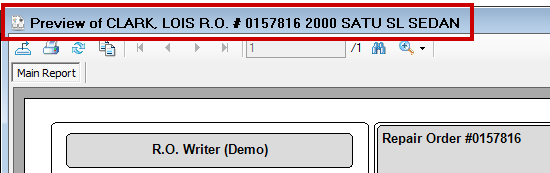
- Click OK to print. The Print Preview window opens displaying the ticket information in the title bar and toolbars.
Print Preview Toolbar
The toolbar at the top of the Print Preview window contains many options you can use to work with the document on the screen.

Export Button
Click the Export button  to export the document to Excel, PDF, .CSV, or .XML. Anything in the print preview window can be exported to these formats.
Print Button
Click the Print button  to print the document to a physical printer. You select the printer manually.
Refresh Button
Click the Refresh button  to refresh the data on the screen. The ticket re-compiles and appears on the print preview window.
Copy Button
Click the Copy button  to copy one line of text you have selected. Click a line in the document to select it and then click this button to copy the text.
You can select only one line of text at a time. If you want to copy multiple lines of text, press and hold the CTRL button while you click on lines of text.
Navigation Buttons
The navigation area contains a series of arrow buttons and page counter  . Click the arrow buttons to navigate through long documents.
- Click the left arrows to go back one page
 or to the first page
  .
. - Click the right arrows to go forward one page
 or to the final page
  .
.- The arrow buttons are active only if the document is longer than one page.
- Use the page counter field to jump to specific pages.
- Type a page number into the white box and press ENTER to jump to that page number.
- The /# entry shows how many pages are in the document overall.
Find Button
Click the Find button  to search the document for specific words, numbers, or characters.
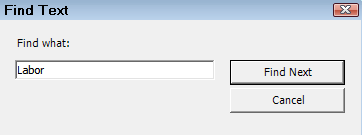
Click the Find Next button. The found text is highlighted and the screen jumps to the text’s location.
Zoom Button
Click the zoom button to make the content on the screen bigger or smaller.
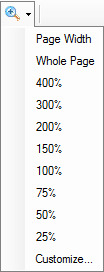
NOTE: The appearance of content on the Print Preview window does not affect the appearance of printed documents. Documents always print as they are formatted to print, which is based on the report type or the form type associated with the document.
Printing to Email
Email appears in the Destination section only if email is properly configured in R.O. Writer.
Complete these steps:
- Select Email as the Destination.
- Click OK to print.
- Your default email program opens with the
- Document attached as a PDF.
- The customer's email address in the To line.