The R.O. Writer Word Processor is similar to Microsoft® Word. If you have Microsoft Word before, you should be very comfortable using the R.O. Writer Word Processor.
The R.O. Writer Marketing module enables you to send emails and letters to your customers. The Word Processor module is where you can create and format the templates that determine the content of those communications.
Creating these templates includes the following advanced features:
- Spell check
- Font formatting
- Bullets and numbers
- Additional merge fields
- Attach files
- Images, logos, web links, etc. can be embedded.
Basic and Advanced Word Processor
There are two versions of the word processor: Basic and Advanced. This page describes the Advanced Word Processor. Click the following link for instructions about the Basic Word Processor.
You determine which Word Processor Version opens when you click Word Processor in the Quick Launch in Marketing Setup.
Security Settings
Security settings are available in Configuration > Security > Security Levels > Word Processor.
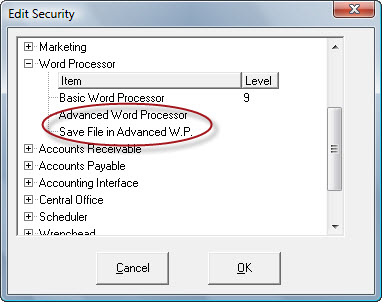
You can set up security levels to access
- Basic Word Processor
- Advanced Word Processor
You can also set a level on Save File in Advanced Word Processor. This prevents certain users from being able to make changes to your standard templates.
Advanced Word Processor Window
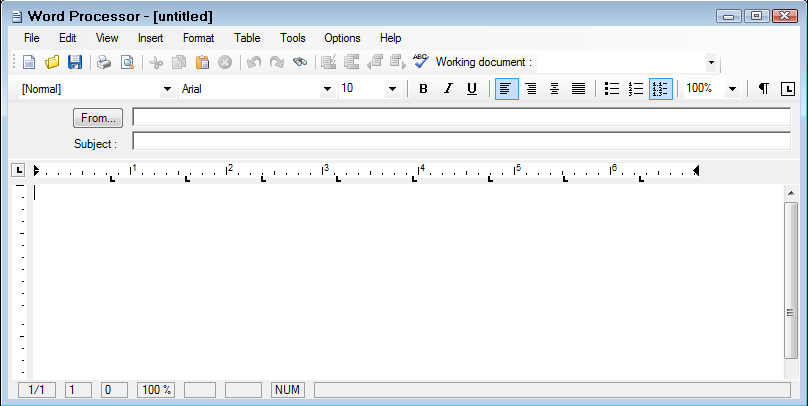
Menu Bar

The File menu contains many of the same functions as the menu bar.
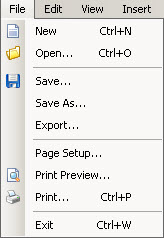
- Select New or press CTRL+N to open a new document.
- Select Open or press CTRL+O to open an existing document. You can also use the Working document dropdown list to select existing documents.
- Select Save to save the current document with the same file name.
- Select Save As to save the current document with a different file name while retaining the original file name that was opened.
- Select Export to export the document as it appears to a PDF file.
- Select Page Setup to change paper size, paper source, orientation, and margins.
- Select Print Preview to view how your document is printed.
- Click Print (or press CTRL+P) to send the document to the printer.
- Click Exit (or press CTRL+W) to exit the Word Processor.
Edit Menu
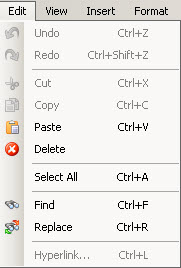
- Select Undo or press CTRL+Z to undo the last edit.
- Select Redo or press CTRL+Shift+Z to redo the last undo.
- Select Cut or press CTRL+X to delete selected text or images.
- Select Paste or press CTRL+V to paste cut or copied text or images to the cursor position.
- Select Delete to delete selected text or images.
- Select All or press CTRL+A to select the entire screen.
- Select Find or press CTRL+F to search for text.
- Select Replace or press CTRL+R to replace selected text with different text throughout the document.
View Menu
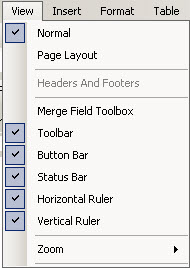
- Select Normal or Page Layout
- Select Merge Field Toolbox to display the merge fields in a floating window for easy access.
To insert merge fields, double-click on the merge field in the toolbox and it is inserted at the cursor position.
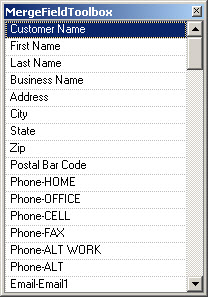
NOTE: The toolbox can be moved by clicking the title bar and dragging it to a different position.
- Select or deselect each of the following items to view: toolbar, Button Bar, Status Bar, Horizontal Ruler, or Vertical Ruler.
- Select Zoom to change the size of the document on the screen. This does not affect printing.
Insert Menu
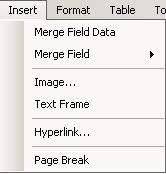
- Select Merge Field Data when a document template is accessed from the customer edit screen or scheduler to populate the merge fields with the available information.
- Select Merge Field to insert important data like customer information into the document or template. For more information, click the following link: Inserting Data Fields.
- Select Image to insert an image located on your computer.
- Select Text Frame to insert a text box.
- Select Hyperlink to insert a link to a website.
- Select Page Break to insert a page break at the cursor position.
Format Menu
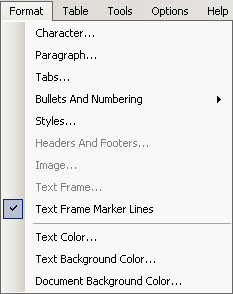
- Select Character to change formatting for selected text such as font and text color.
- Select Paragraph to change formatting for the selected paragraph such as alignment and spacing.
- Select Tabs to change the spacing of the tabs.
- Select Bullets and Numbering to use bullets or numbering.
- Select Text Color to edit color of selected text.
- Select Text Background Color to edit the color of the background of the selected text.
- Select Document Background Color to edit the color of the document background.
Table Menu
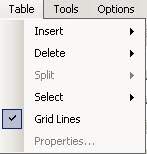
The Table menu allows you to insert and format tables into your document.
Tools Menu
This is where you can access the Spell Check feature. You can also access spell check by pressing the F7 key.
Options Menu
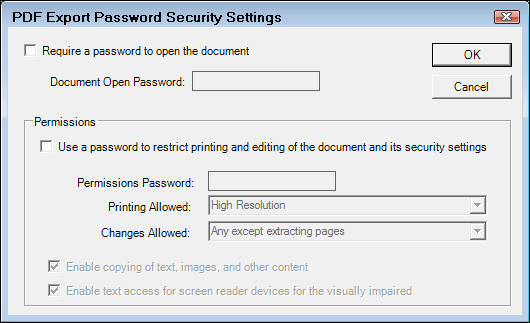
This is where you can access security options that is applied when you export the document to a PDF file.
Formatting a Word Processor Document
For details, click the following link: Formatting a Document.
Inserting Data Fields
There may be instances when information pertaining to a customer or a vehicle is needed in a document, or perhaps a date. Instead of entering this information for each customer, data fields may be entered.
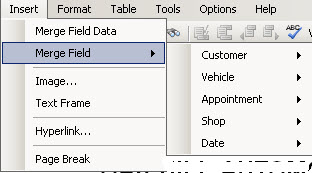
The Merge Field entry on the Insert menu allows you to add many different kinds of data.
To Enter a Data Field
To enter a data field in a document, position the insertion point at the location in the document where the field is to be inserted. Click Insert menu > Merge Field > select the category > select the field name and format if needed.
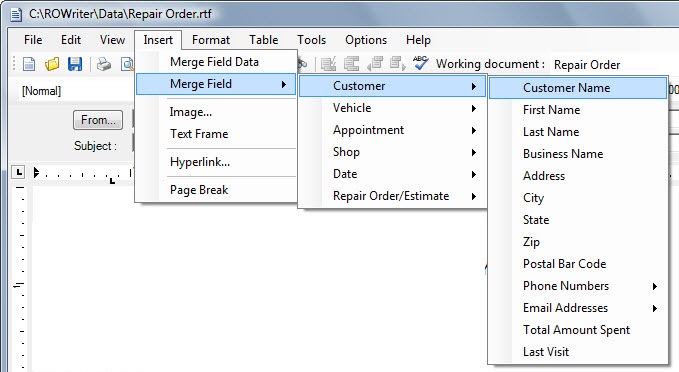
Data fields may also be entered by positioning the insertion point at the location in the document where the field is to be inserted, and double-clicking on the desired field from
The following data fields are available:
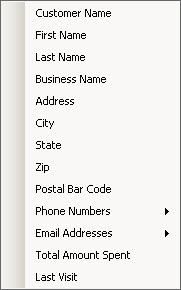
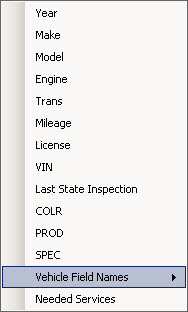
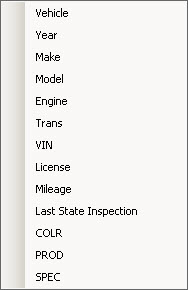
The Repair Order/Estimate fields are useful on the Estimate PDF or Repair Order PDF templates used when emailing estimates and repair orders to customers. The type is to identify either an estimate or a repair order.
Customer Vehicle Menu Options
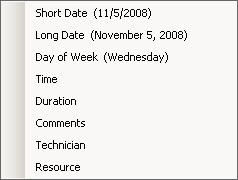
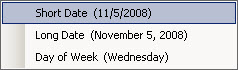
Appointment Date Menu Options
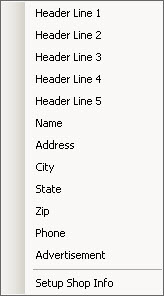
To Change the Shop Information
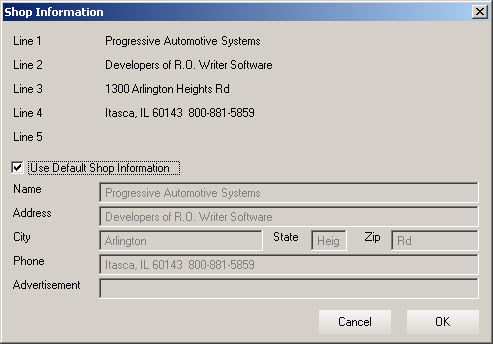
The default shop information from the software license automatically becomes the header that prints on reports and repair orders. This is also the default information for documents you create in the Advanced Word Processor until you change it.
Select Setup Shop Info to customize the shop information specifically for the Advanced Word Processor and enhanced emails.
When the Shop Information window opens, the Use Default Shop Information checkbox. This displays the shop information but disables the fields so they cannot be edited.
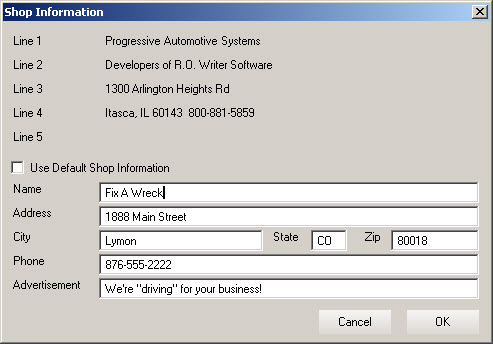
Uncheck the Use Default Shop Information box to enable the shop information fields.
To Insert Images
To insert an image from a saved file,
- Position the insertion point at the location in the document where the image is to be inserted.
- Click Insert menu > Image from the menu, and identify the file to be inserted.
You may need to change the Files of Type in the dropdown list if the file you are inserting is a different type than is shown.
You will need to use a picture editing program to re size the image if needed.
To Insert Hyperlinks
Click Insert menu > Hyperlink.
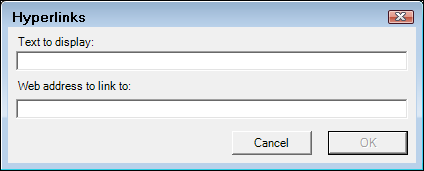
Enter the Text that will display on the screen to the reader and the web address. Web addresses must include the “http://” before the web address that begins “www.”; for example: "http://www.rowriter.com").
WARNING! Web links will not work without the “http://” prefix.
When the customer clicks on the link in the email they receive, the link should open their default web browser to that web address. The hyperlink is inserted at the cursor position.
To Insert Text Frames
You can frame text to emphasize it. Text frames work the same as text boxes in Microsoft Word and can be moved by dragging the text frame to a different location.
To Insert Page Breaks
If more than one page is required, a Page Break can be inserted.
Creating a Post Card
Click File > Page Setup > Size dropdown list and select the size of the postcard you want to use.
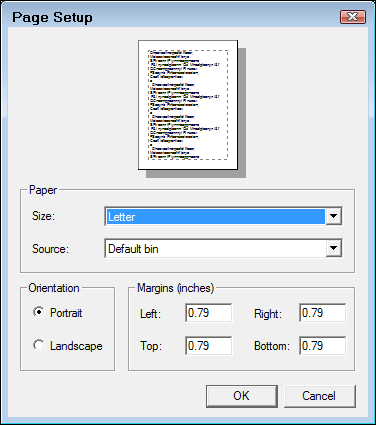
Only single postcards stacked in a tray or DOT matrix continuous feed has been known to work. A sheet of post cards is not supported at this time.