The R.O. Writer Word Processor is similar to Microsoft® Word. If you have Microsoft Word before, you should be very comfortable using the R.O. Writer Word Processor.
The R.O. Writer Marketing module enables you to send emails and letters to your customers. The Word Processor module is where you can create and format the templates that determine the content of those communications.
Basic and Advanced Word Processor
There are two versions of the word processor: Basic and Advanced.
You determine which Word Processor Version opens when you click Word Processor in the Quick Launch in Marketing Setup.
This page describes the Basic Word Processor. See Advanced Word Processor for those instructions.
Basic Word Processor Window
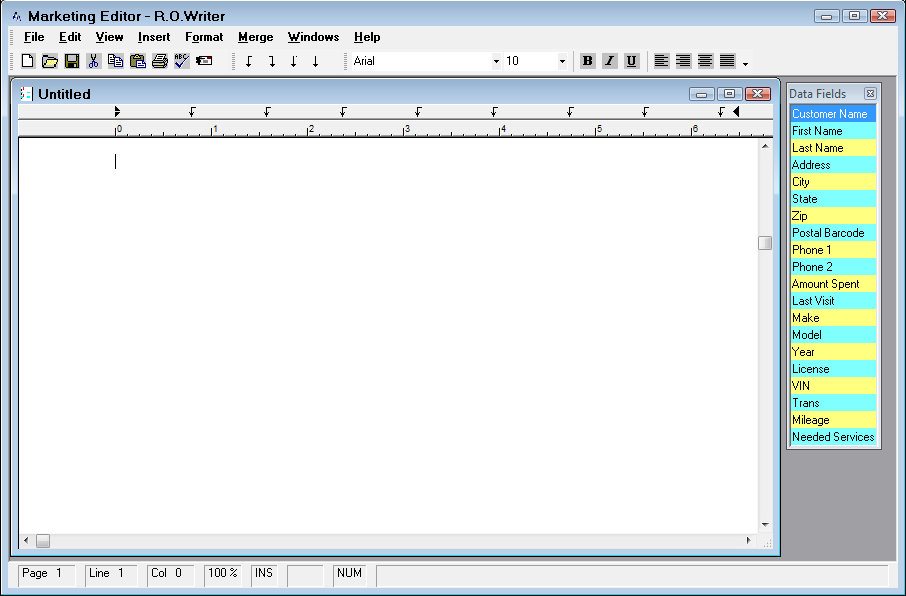
Title Bar
The name of the module appears across the top left. Beneath the module name is the menu and beneath the menu is the toolbar. When the word processor is started, a blank document is opened, which is called Untitled.
Ruler
Across the top of the document is a numbered scale called the ruler. The ruler facilitates formatting.
Status Bar
At the very bottom of the screen is an area that is referred to as the status bar. The status bar has seven spaces in which information about the current document is displayed.
- The first three spaces display information pertaining to the insertion point location in the document. A small blinking vertical line depicts the insertion point. The information displayed is the page number, the current line number, and the current column, or character number.
- The fourth space displays the percent at which the document is viewed is displayed next.
- The last three items display the status of the Insert key, the CAPS LOCK key, and the NUM Lock key respectively. If a key is active, an abbreviation will appear in its space in the status bar. In the example, the Insert key and the NUM Lock key are active, but not the CAPS LOCK key.
The topics in this section include: