Creating New Customers
When a customer contacts your shop or walks in requesting service, the first step is to search for the customer.
You are prompted to search for a customer and vehicle whenever you
- Create a new estimate, repair order, or parts-only ticket
- Search local history
- Create an appointment
It is much easier to have only one household member associated with all vehicles for that household.
Creating New Customers on the Edit Customer Window
You create or edit customer records on the Edit Customer window.
Complete these steps:
- Search for the customer. The Customer List opens displaying a list of matching customers.
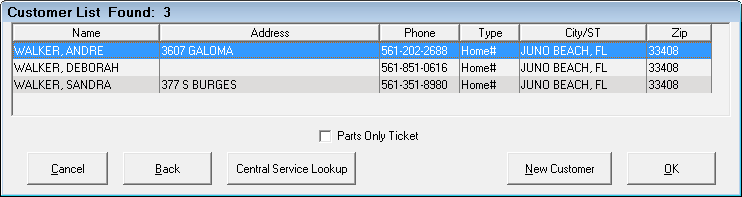
If the customer is not found, the window displays "No Matches Found!".
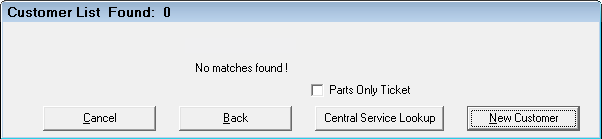
- Click the New Customer button and the Edit Customer window opens.
- Complete the Customer Tab.
- If applicable, complete the Other Info Tab and Notes Tab.
- You normally complete these tabs after the initial entry of basic customer information.
- Click OK to save the customer. The Edit Vehicle window opens.
- Enter the vehicle information.
Editing Customer Information
There are several ways to access vehicle information for editing:
- On an open ticket, click the Edit Customer link on the Parts/Labor Tab.
- In the Configuration module, click the Customers/Vehicles menu > Edit Customers and search for the customer or the vehicle.