Interchange opens in its own tab window in Smart eCat. When you click the Interchange button  , the tab window is blank. Most of the options on this window are disabled until a search is performed.
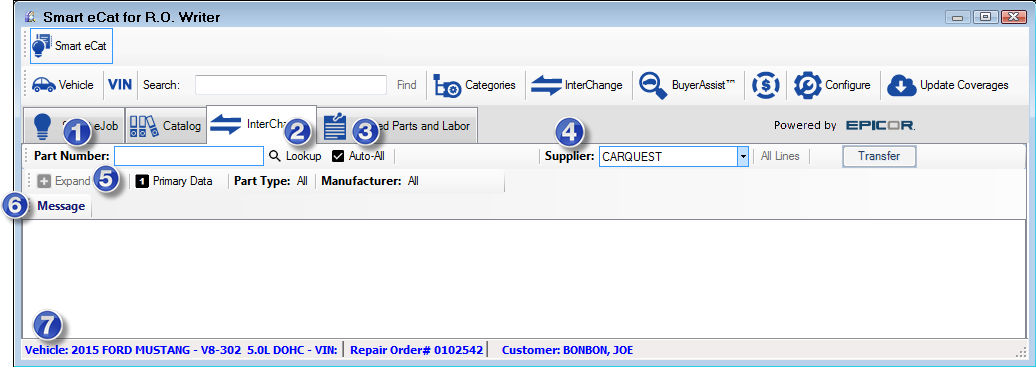
| # | Name | Description |
|---|---|---|
|
1 |
Part Number |
Enter the part number in this field. If the cursor remains in this field, you can launch a search. |
|
2 |
Click this button to search. |
|
|
3 |
Auto-All |
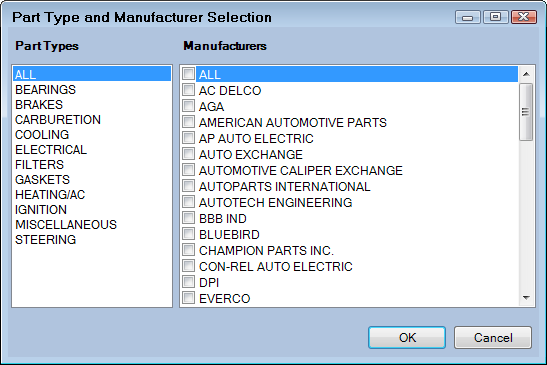
The Auto-All option is checked by default. The initial search (with Auto-All checked) searches only enabled manufacturer lines. The All Lines button is not active until after a search is performed. Manufacturer lines are enabled when you set up the supplier in Smart eCat Configuration. If you uncheck the Auto-All box and search, on the window that pops up, you need to select at least one part type and then the manufacturer lines within that part type.
You can select manufacturer lines within one and only one part type. The part type manufacturer lines selected when you click OK are the only lines searched. |
|
4 |
Supplier |
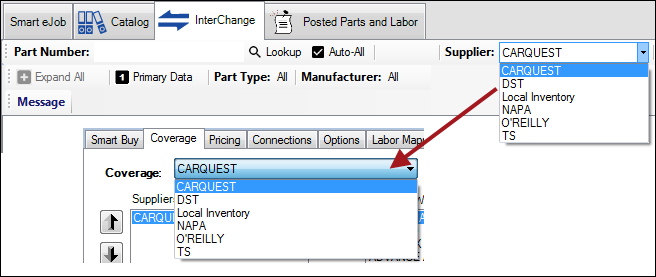
This dropdown list contains the suppliers whose coverages have Interchange enabled. For details, click the following link: To Enable Interchange in a Supplier Coverage. Configured supplier coverages appear on the Coverage tab in Smart eCat Configuration. The Supplier dropdown list in Interchange should match that list.
You can search only one supplier at a time. To search another supplier for the same criteria, simply select another supplier in this dropdown list. The search results return automatically. |
|
5 |
You can choose to search Primary Data or Secondary Data when searching. Primary is selected by default. Items are made primary or secondary when they are enabled or disabled during supplier coverage setup. |
|
|
6 |
This line displays all the feedback from Epicor after a search is completed. Message is the label that appears before a search is performed. |
|
|
7 |
This is the bottom line of Smart eCat. This vehicle information is entirely independent of Interchange; it has no impact on searches. If you plan on posting parts from Interchange to the open ticket, make sure the parts you search match the vehicle on the open ticket. |
Interchange Search Results
After you enter a part number and press the ENTER key or the Lookup button,
- The matching parts appear in the middle of the window.
- Other options and information activate on the toolbar.
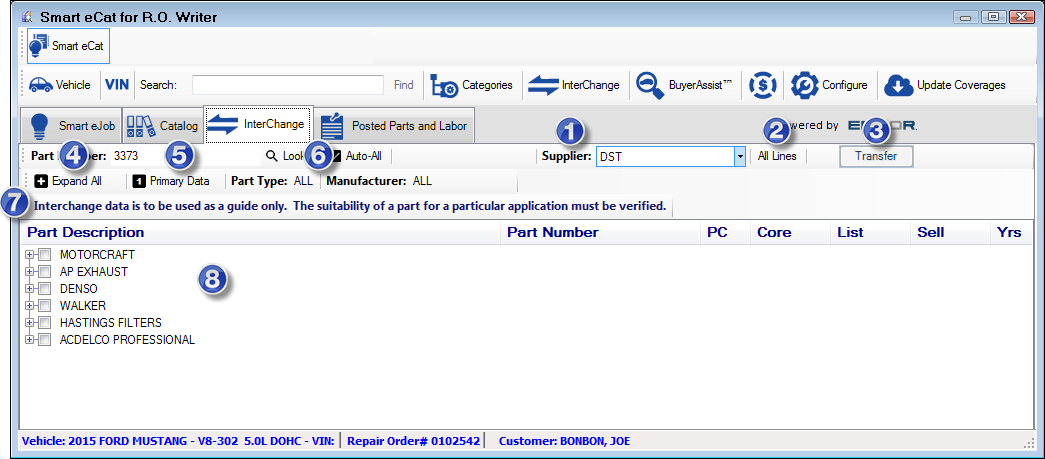
| # | Name | Description |
|---|---|---|
|
1 |
This is the supplier searched. Only one supplier can be searched at a time. To search another supplier for the same criteria, simply select another supplier in this dropdown list. The search results return automatically. |
|
|
2 |
All Lines |
Click to search by All Lines. Both enabled and disabled manufacturer lines for the part category in the supplier are searched. If there are too many values to retrieve, you are prompted that an All Lines search cannot be done. For details, click the following link: To Search All Lines. |
|
3 |
Transfer |
Click this button to transfer a part selected in the search results to Smart eCat. |
|
4 |
Expand All |
Click this button to expand and collapse all search results. |
|
5 |
Primary Data |
This button toggles between the primary and secondary information. Primary is selected by default. You can change to the secondary information before a search or after a search. Items are made primary or secondary when they are enabled or disabled during supplier coverage setup. |
|
6 |
Part Type/ Manufacturer |
This is the part type and manufacturer lines selected for the search.
|
|
7 |
This line displays all feedback from Epicor. Always check this area after a search is completed to see if there is something you need to know about the search. The standard message displays unless there is information from Epicor specific to the search results. The standard message is "Interchange data is to be used as a guide only. The suitability of a part for a particular application must be verified." |
|
|
8 |
Matching Parts |
These are the matching parts in the part type and manufacturer line for the supplier. The manufacturer line appears on the top line. Click the + or - boxes to see the matching parts in each manufacturer line. You can also click the Expand and Collapse buttons to expand and collapse all results.
|
Sell and List Prices
The Sell and List price displayed for each part depends on its source. Supplier parts may not reflect actual pricing whereas local inventory parts do.
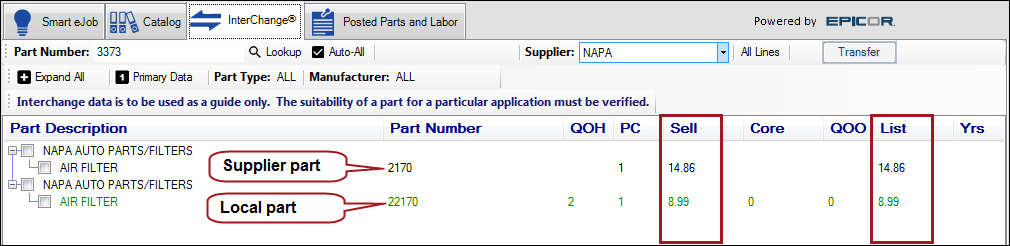
- Supplier parts are black.
- Local parts are green.
NOTE: The PC column is the quantity and always one for both supplier and local parts.
Supplier Parts
For supplier parts, the Sell and List prices come from the local data files from Epicor. This means these prices may not be the actual prices charged to the customer. Updates to supplier pricing are not reflected on the Interchange window.
To see the actual prices for supplier parts, you need to transfer the parts to Smart eCat and then check the price and availability by clicking the Phone button  .
.
Local Inventory Parts
For local inventory parts, the Sell and List prices come from the local inventory record. This means these prices are the actual prices.
For details, click the following link: Local Inventory in Search Results.
Local Inventory in Search Results
You can expand individual sections or click the Expand All button to see all parts. Local parts are green.
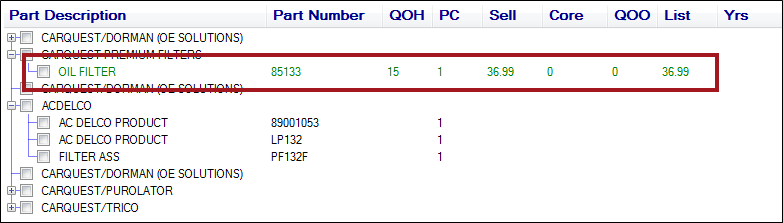
The values on this row - including the Sell and List prices - come from the local inventory record.
The following columns appear only for local inventory:
- QOH is the quantity on hand.
- QOO is the quantity on order.
To see the Cost as well, click the Cost button  in the Smart eCat toolbar.